Steps to Create Intelligent Scenarios
-
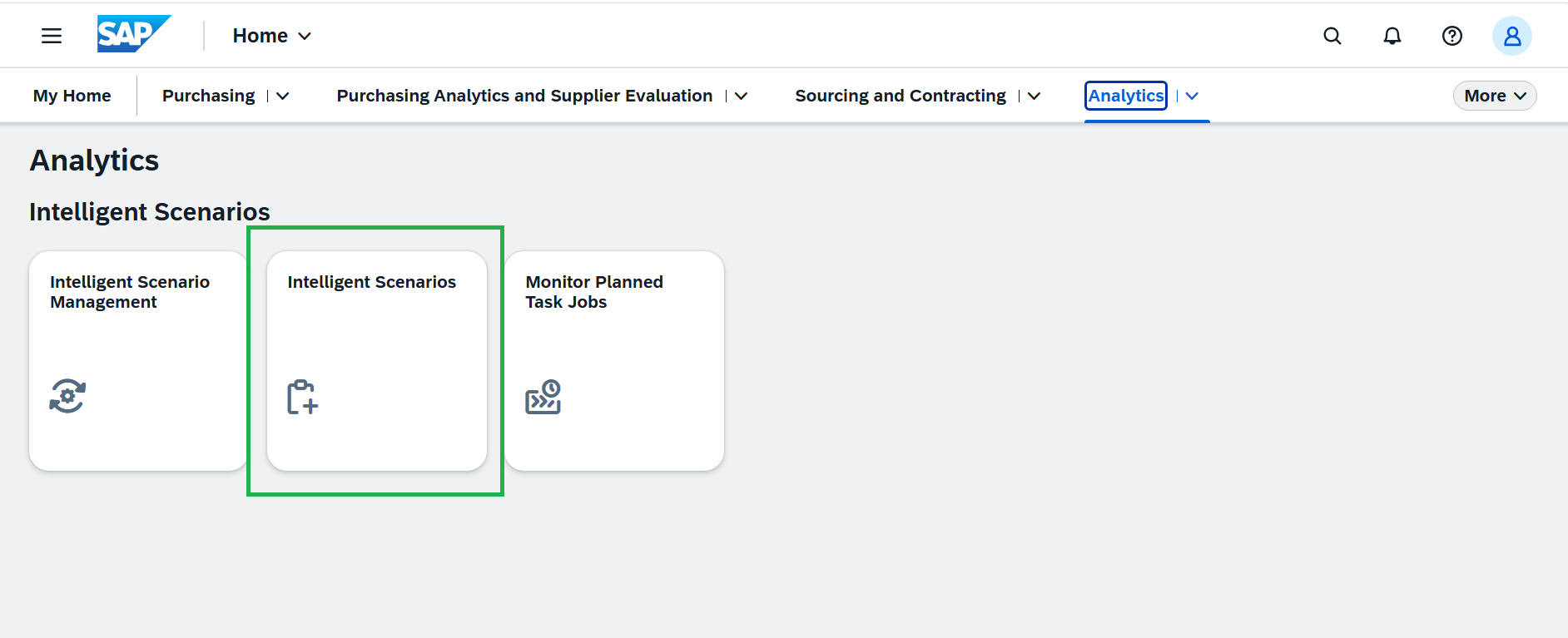
Open the Fiori Launchpad and launch the Intelligent Scenarios app under the Analytics tab. Please refer to the cheat sheet for guidance.
-
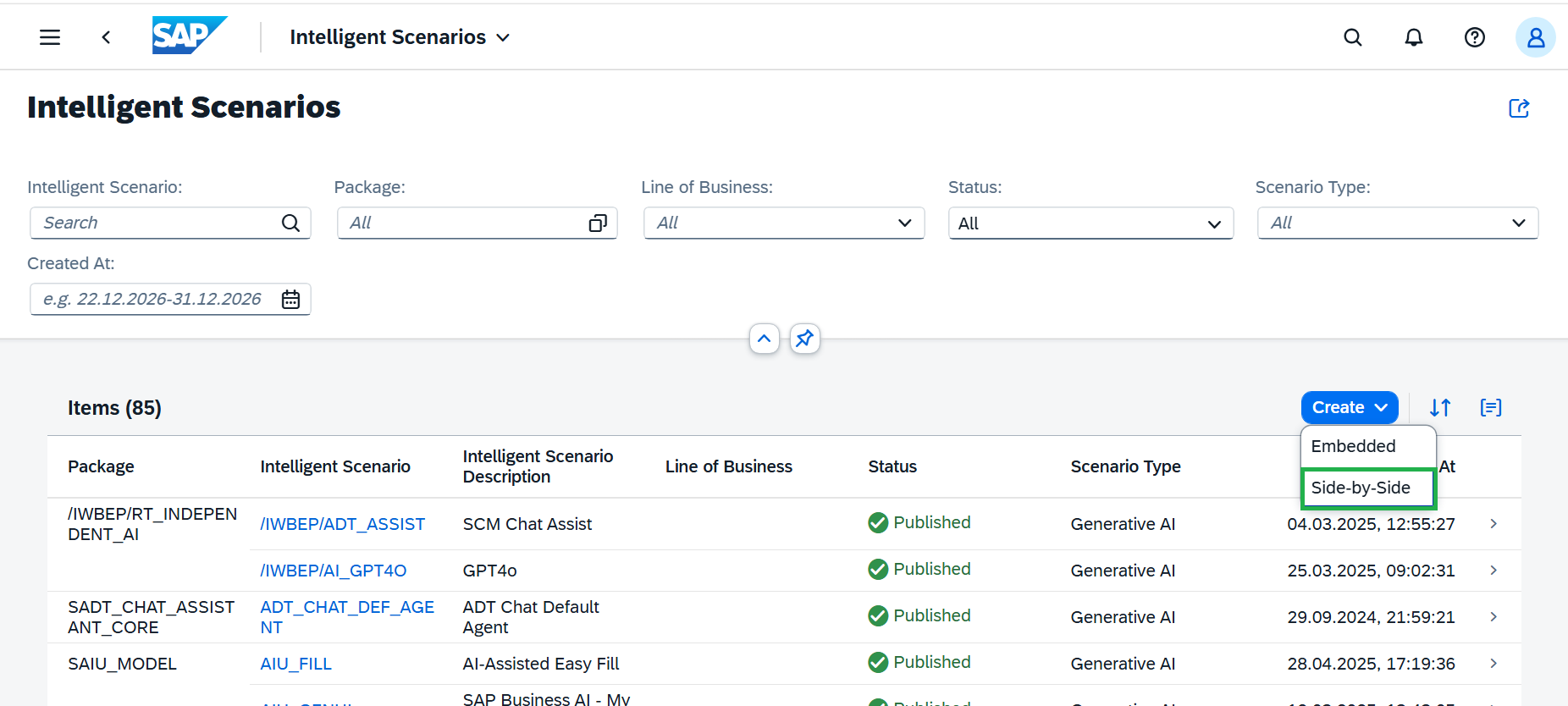
Click the Create button and choose Side-by-Side.
-
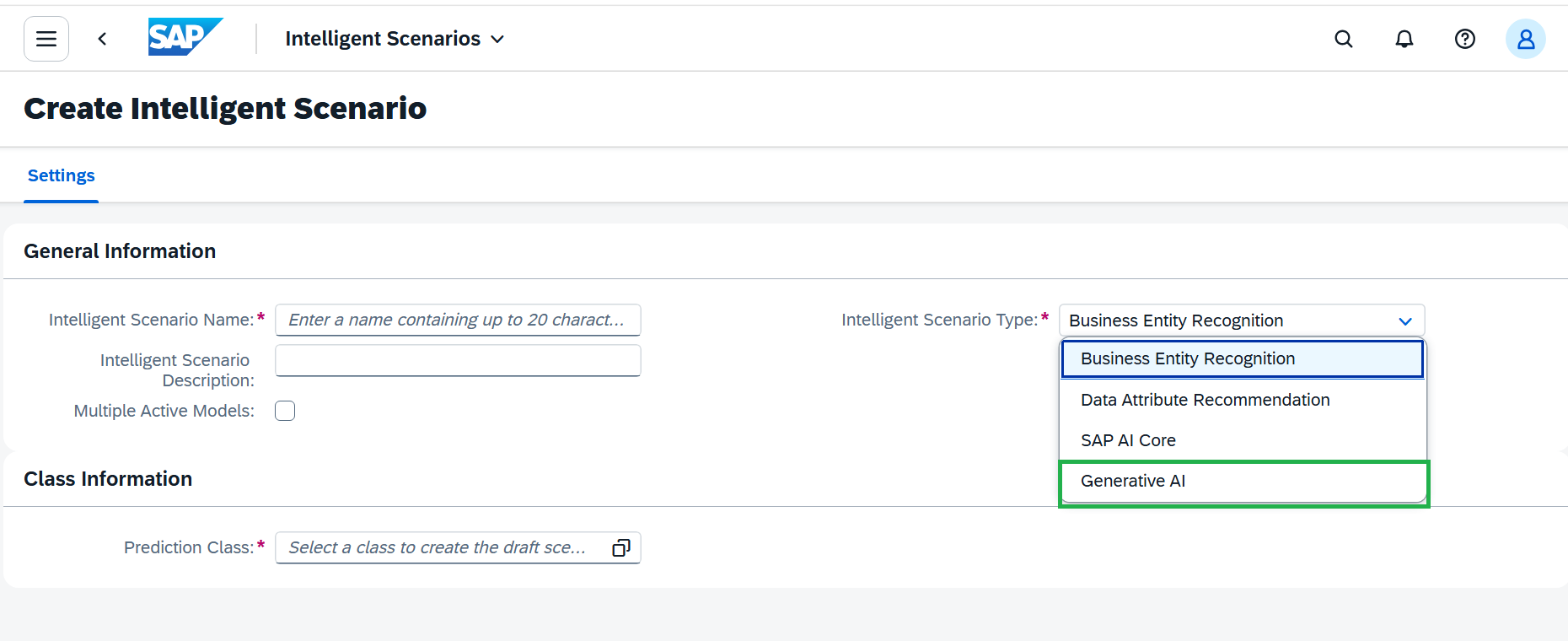
Next, go to the Settings tab and select Generative AI as the Scenario Type.
-
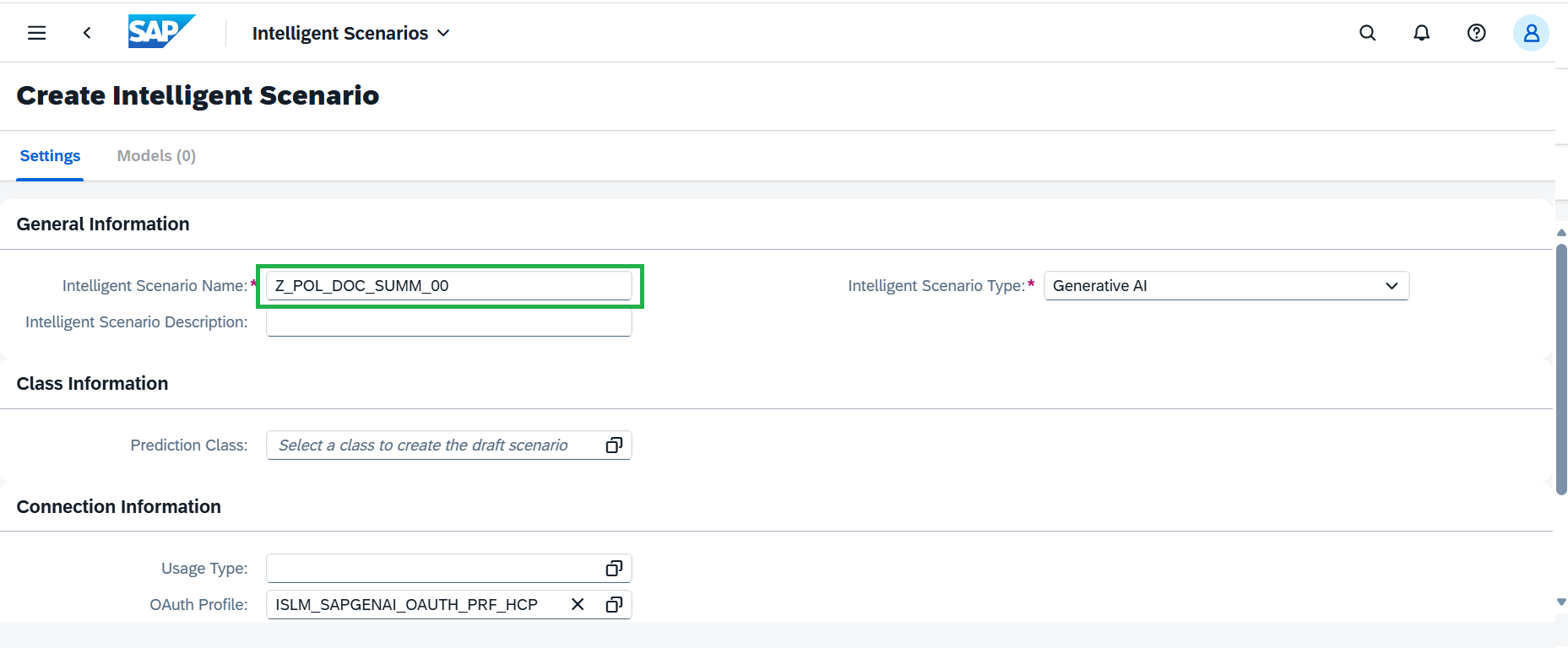
Enter unique Scenario name in
Z_POL_DOC_SUMM_##format, where ## is your attendee ID.
-
Enter the description:
Summarize Return Policy Document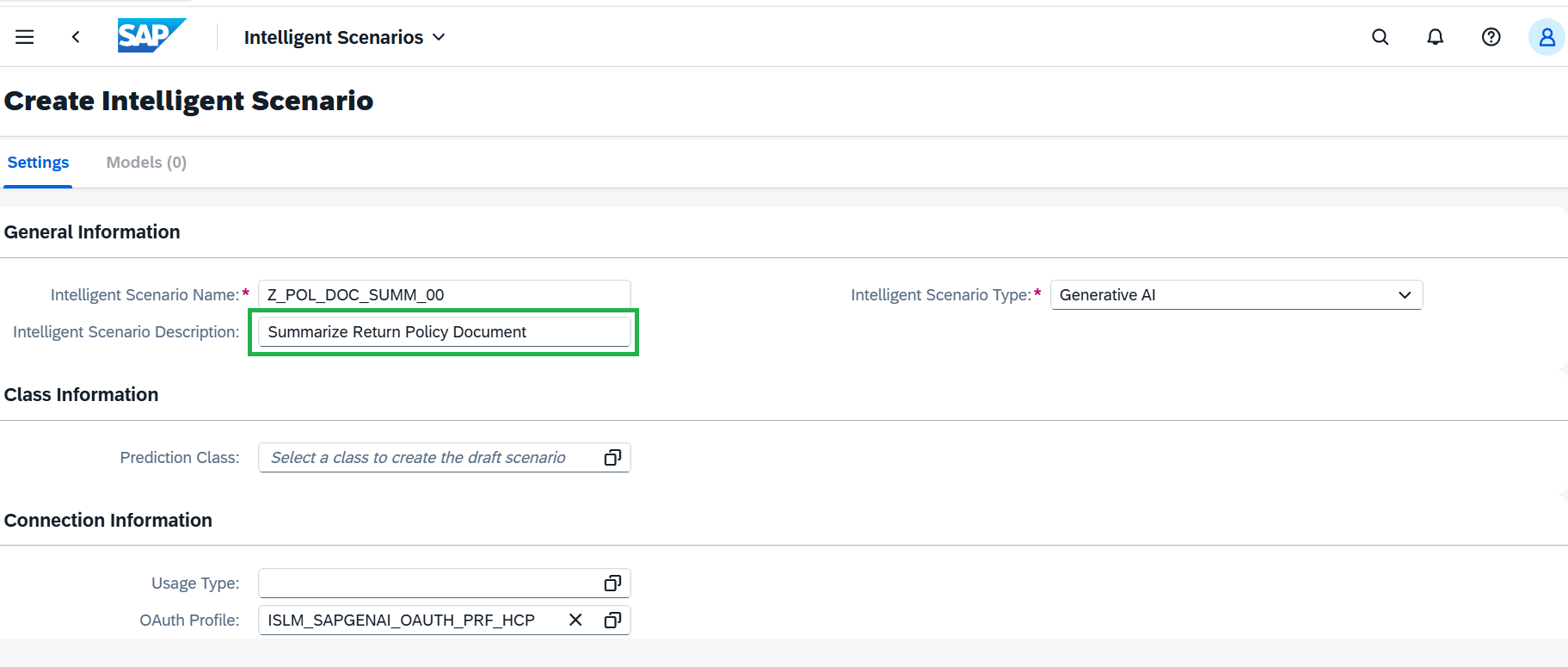
-
Usage Type: A shared connectivity model in ISLM enables a single connection between the ABAP system and the SAP Generative AI Hub to be configured once and reused across multiple AI use cases. This streamlines connectivity management, strengthens governance, and reduces the overall configuration and setup effort. Reuse connectivity is already set up and no action is required here for connectivity.
Select Stateless – Customer as the Usage Type.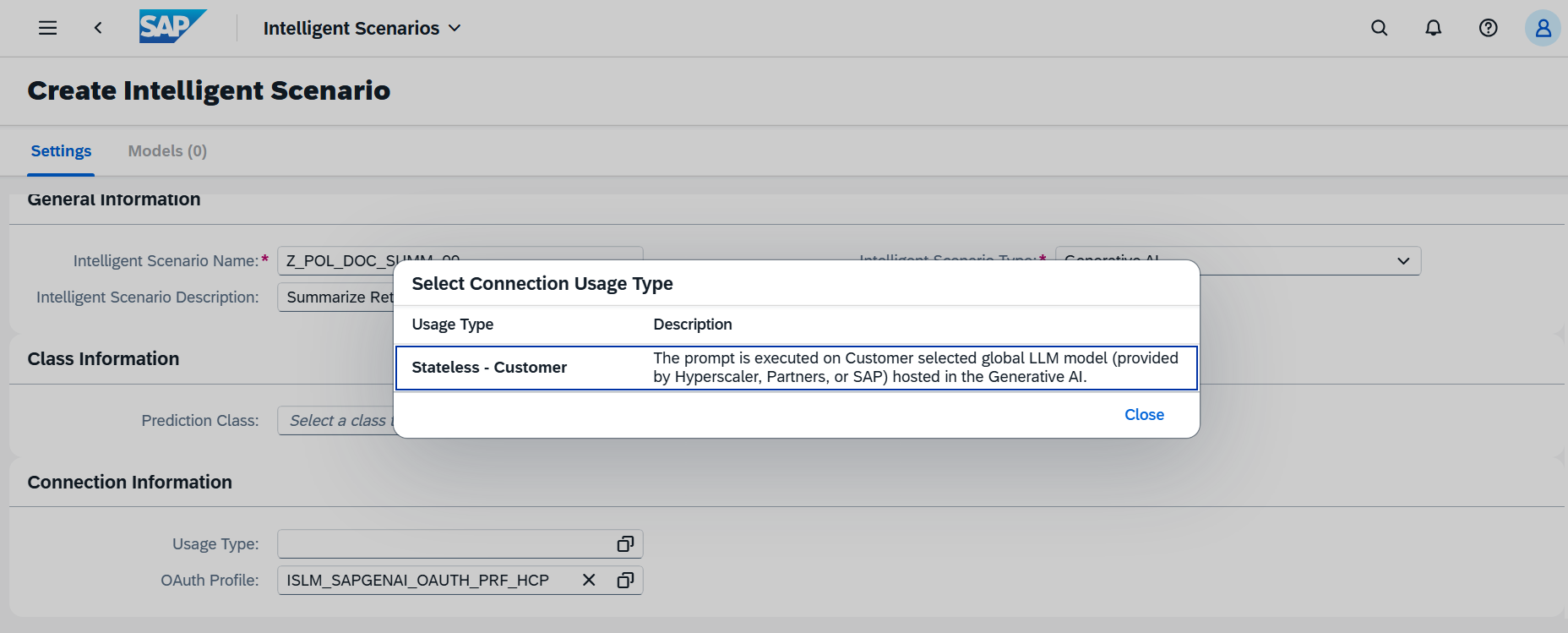
-
Model: An ISLM entity that represents the AI model configured for use by an intelligent scenario, enabling centralized model configuration and reuse across supported AI use cases.
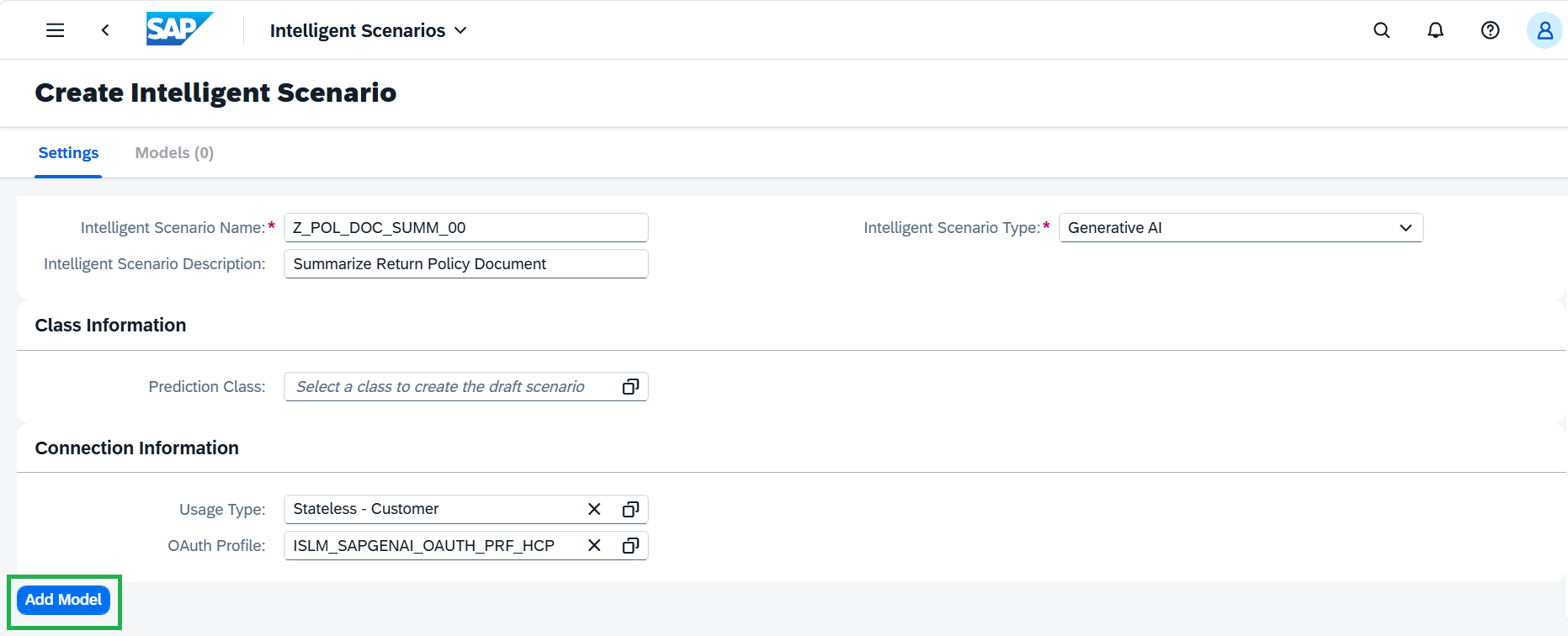
Add a Generative AI model to the Intelligent Scenario by selecting Add Model and providing the required details.
-
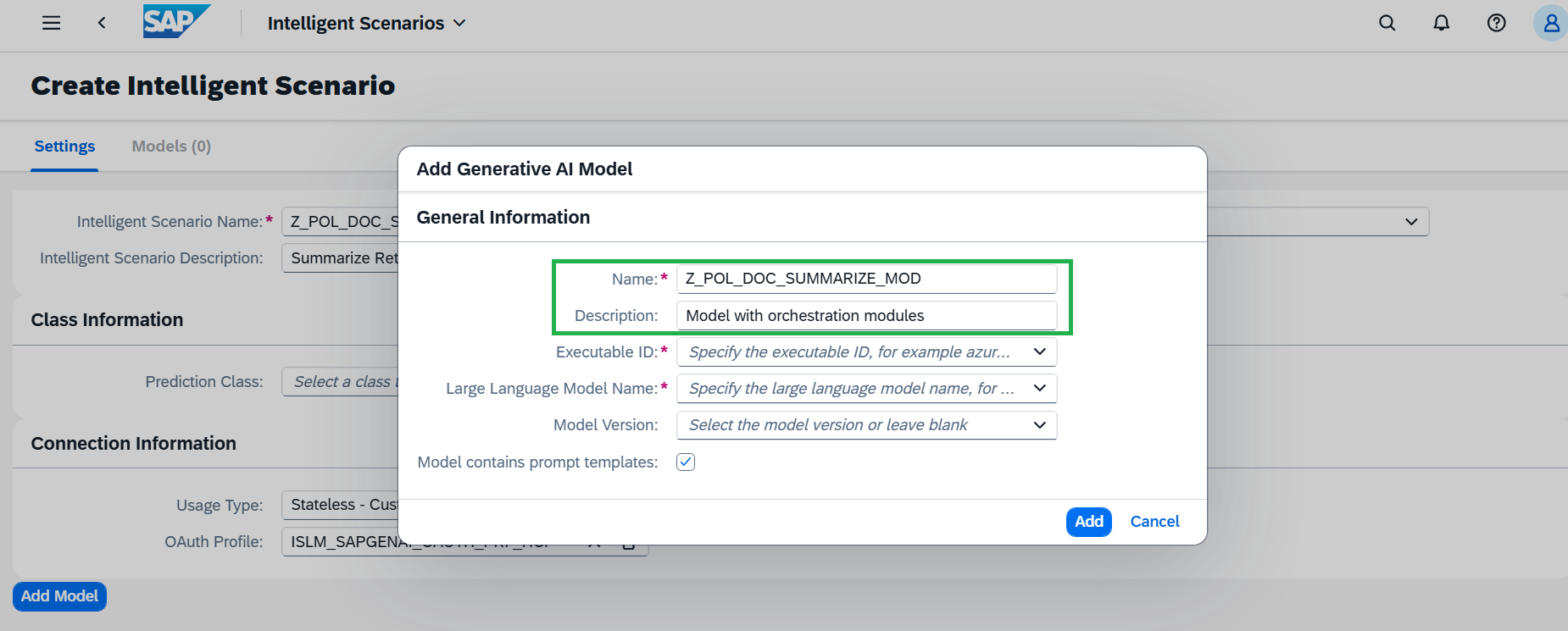
Enter the below details:
Model name asZ_POL_DOC_SUMMARIZE_MOD
Description asModel with orchestration modules
-
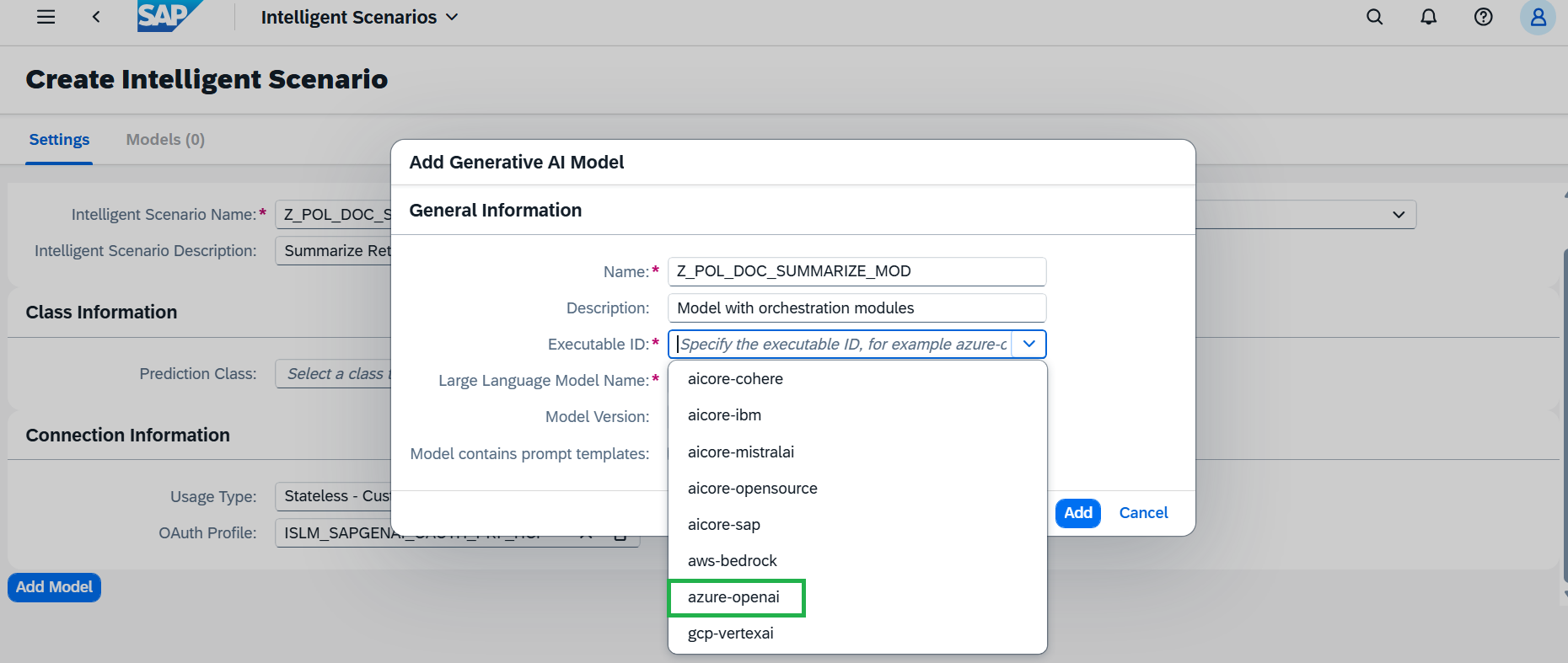
The Executable ID identifies the executable configuration used by the Intelligent Scenario to access the Generative AI model. It represents the configured provider or execution endpoint through which the LLM is invoked.
Select the appropriate Executable ID from the drop down. In this case, we will choose azure-openai
-
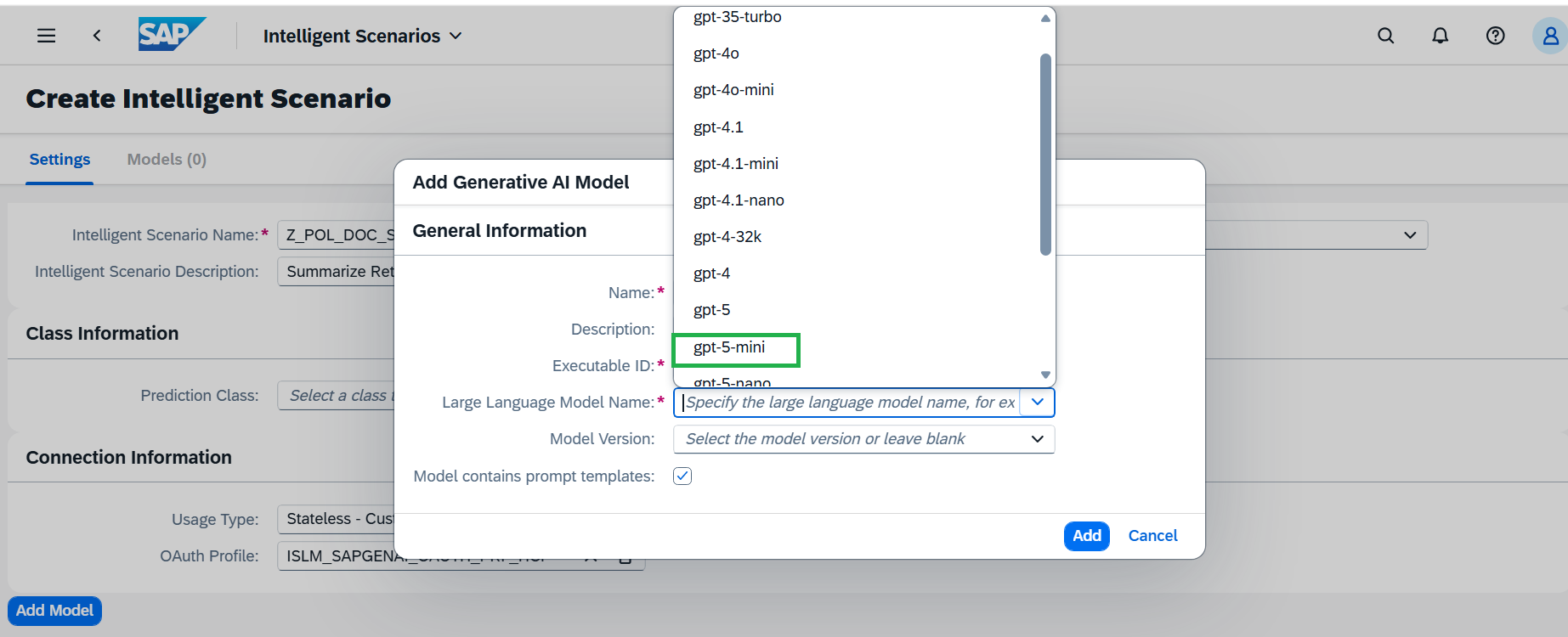
The Large Language Model (LLM) specifies the language model that processes the input and generates the response. The LLM is defined by its model name and, where applicable, its version.
Select the corresponding Model from the drop down. In this exercise, we will choose gpt-5-mini
-
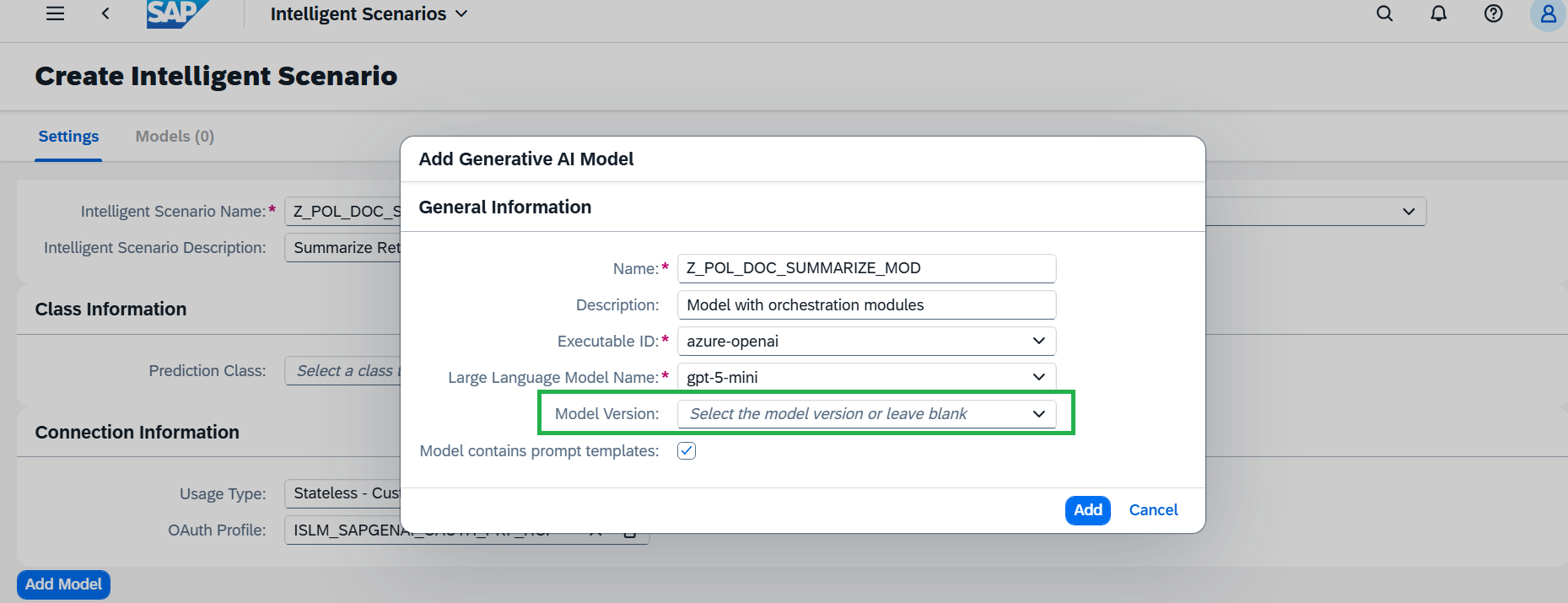
Optionally, choose a specific Model Version (latest is selected by default). In this case, we can keep as empty to have latest.
-
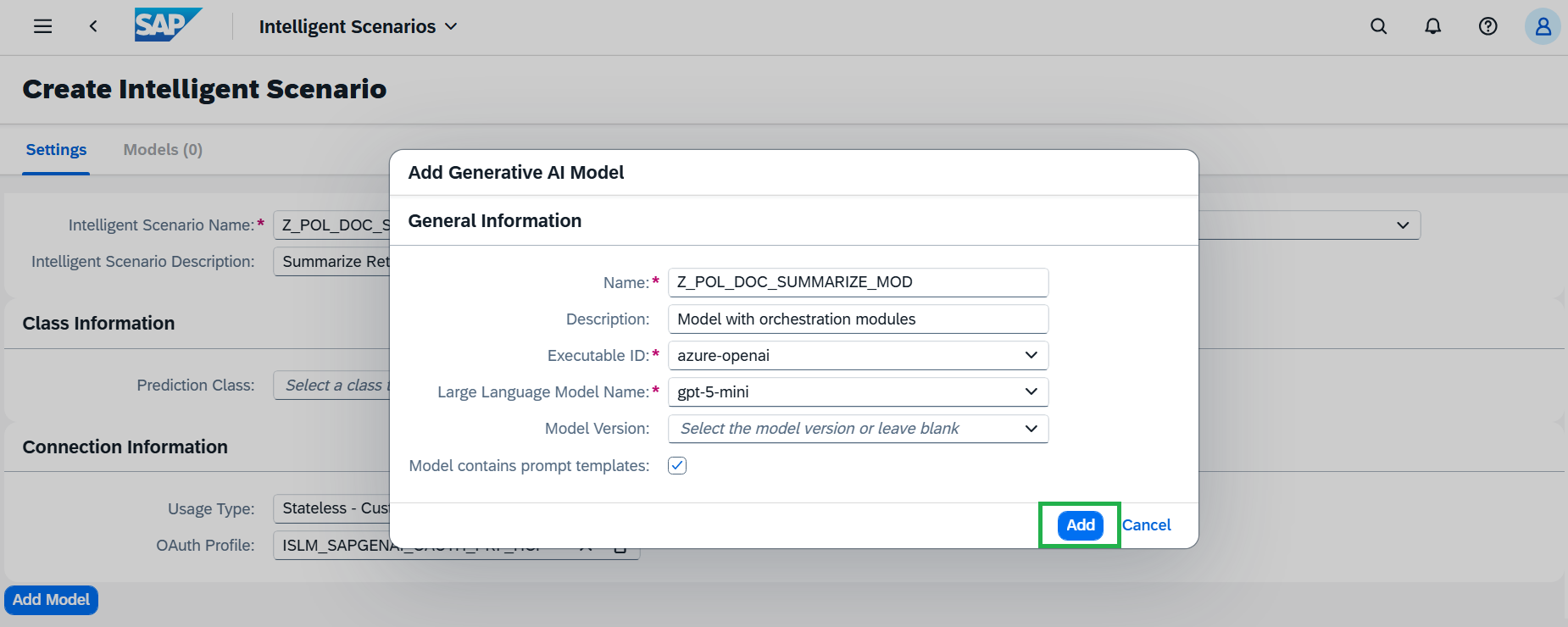
Choose Add to confirm.
-
Intelligent scenario with Orchestration service:
Within AI Launchpad, configure the required orchestration modules based on the use case. The configuration should be a valid orchestration workflow and must be exported as a JSON file. Workflow is already configured, validated, exported as JSON and provided below. No action is required here.
- Navigate to the Execution Flow Template and click the Upload button to upload the json.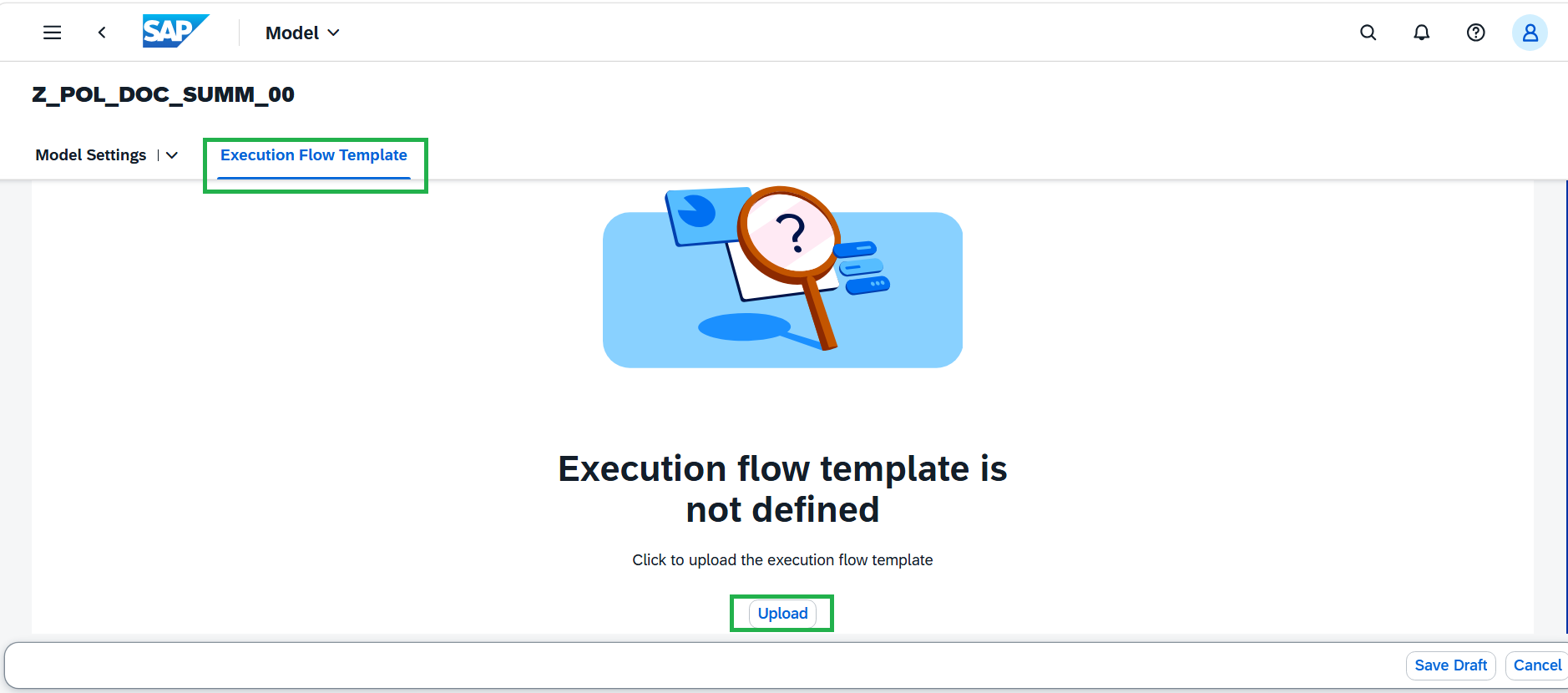 - Either select all and copy the JSON from config file, or paste the below JSON directly into the dialog.
{ "modules": { "prompt_templating": { "prompt": { "template": [ { "role": "user", "content": [ { "type": "text", "text": "{{?grounding_output_variable}}" } ] } ], "defaults": {} }, "model": { "name": "gpt-5-mini", "params": { "max_tokens": 64000, "temperature": 1 }, "version": "2025-08-07" } }, "filtering": { "input": { "filters": [ { "type": "azure_content_safety", "config": { "hate": 2, "self_harm": 2, "sexual": 2, "violence": 2, "prompt_shield": true } }, { "type": "llama_guard_3_8b", "config": { "child_exploitation": true, "code_interpreter_abuse": true, "defamation": true, "elections": true, "hate": true, "indiscriminate_weapons": true, "intellectual_property": true, "non_violent_crimes": true, "privacy": true, "self_harm": true, "sex_crimes": true, "sexual_content": true, "specialized_advice": true, "violent_crimes": true } } ] }, "output": { "filters": [ { "type": "azure_content_safety", "config": { "hate": 2, "self_harm": 2, "sexual": 2, "violence": 2 } }, { "type": "llama_guard_3_8b", "config": { "child_exploitation": true, "code_interpreter_abuse": true, "defamation": true, "elections": true, "hate": true, "indiscriminate_weapons": true, "intellectual_property": true, "non_violent_crimes": true, "privacy": true, "self_harm": true, "sex_crimes": true, "sexual_content": true, "specialized_advice": true, "violent_crimes": true } } ] } }, "masking": { "masking_providers": [ { "type": "sap_data_privacy_integration", "method": "pseudonymization", "entities": [ { "type": "profile-credit-card-number" }, { "type": "profile-driverlicense" }, { "type": "profile-email" }, { "type": "profile-sensitive-data" }, { "type": "profile-ethnicity" }, { "type": "profile-gender" }, { "type": "profile-pronouns-gender" }, { "type": "profile-iban" }, { "type": "profile-location" }, { "type": "profile-nationalid" }, { "type": "profile-nationality" }, { "type": "profile-org" }, { "type": "profile-passport" }, { "type": "profile-person" }, { "type": "profile-phone" }, { "type": "profile-political-group" }, { "type": "profile-sapids-public" }, { "type": "profile-religious-group" }, { "type": "profile-sapids-internal" }, { "type": "profile-ssn" }, { "type": "profile-sexual-orientation" }, { "type": "profile-trade-union" }, { "type": "profile-address" }, { "type": "profile-url" }, { "type": "profile-university" }, { "type": "profile-username-password" } ], "mask_grounding_input": { "enabled": true }, "allowlist": [] } ] }, "translation": { "output": { "type": "sap_document_translation", "config": { "source_language": "en-US", "target_language": "" } } } } }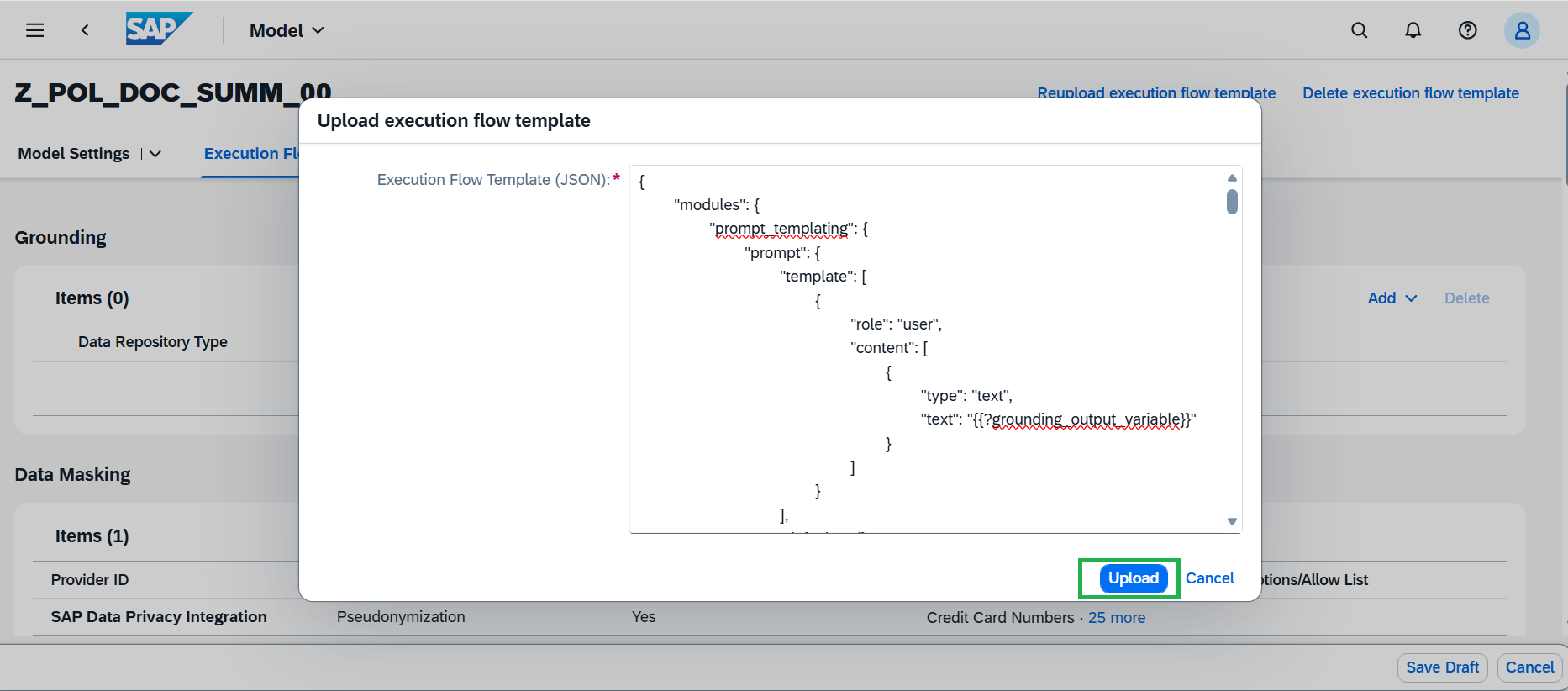
- Once a valid JSON is uploaded, the modules will be displayed with their parameters and values in display mode. -
Grounding provides the LLM with relevant and reliable information from external data sources before generating a response. This helps the model generate responses based on the provided data rather than relying only on its pre-trained knowledge.
In an orchestration workflow, grounding can be used to retrieve relevant information from sources such as documents, databases, or other enterprise data and provide it as context to the LLM.
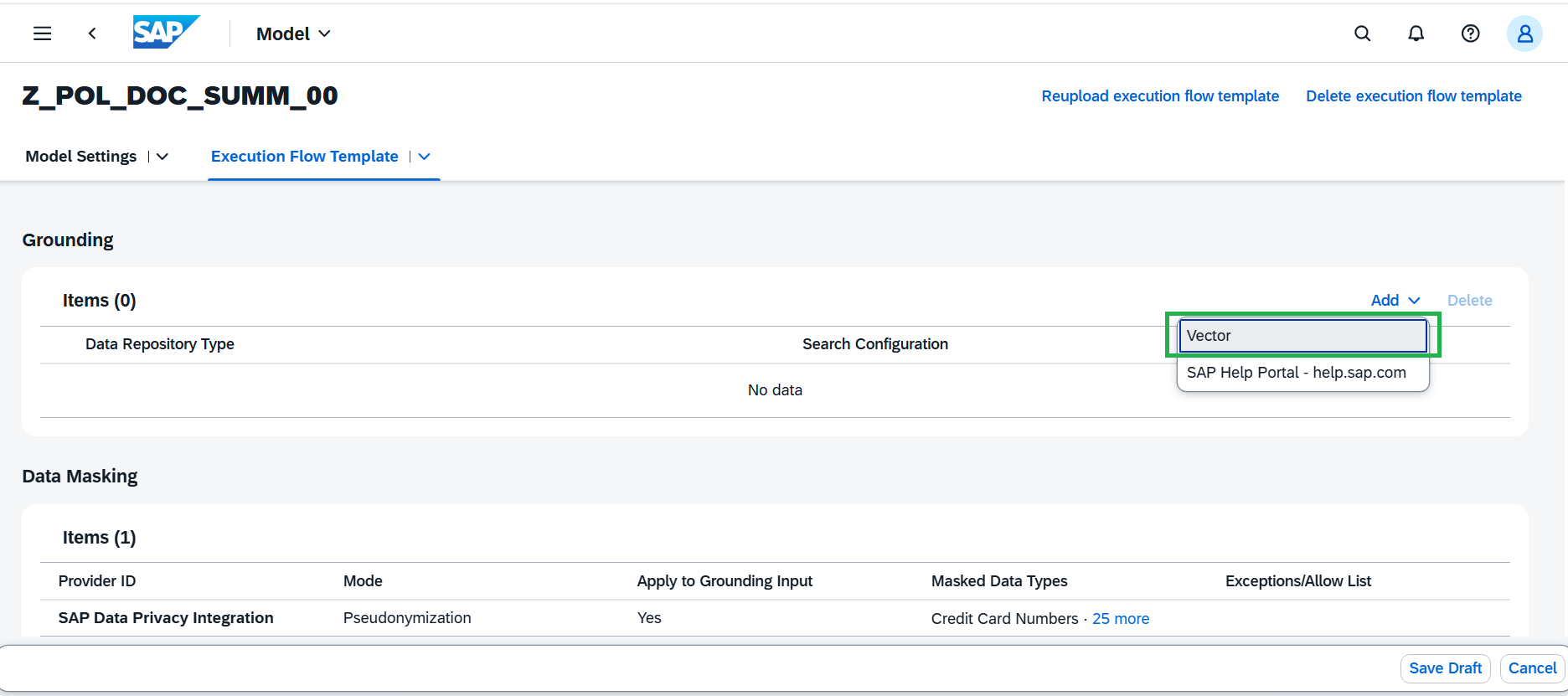
In the Grounding subsection, add the required data repository type Vector. This will support the grounding document addition.
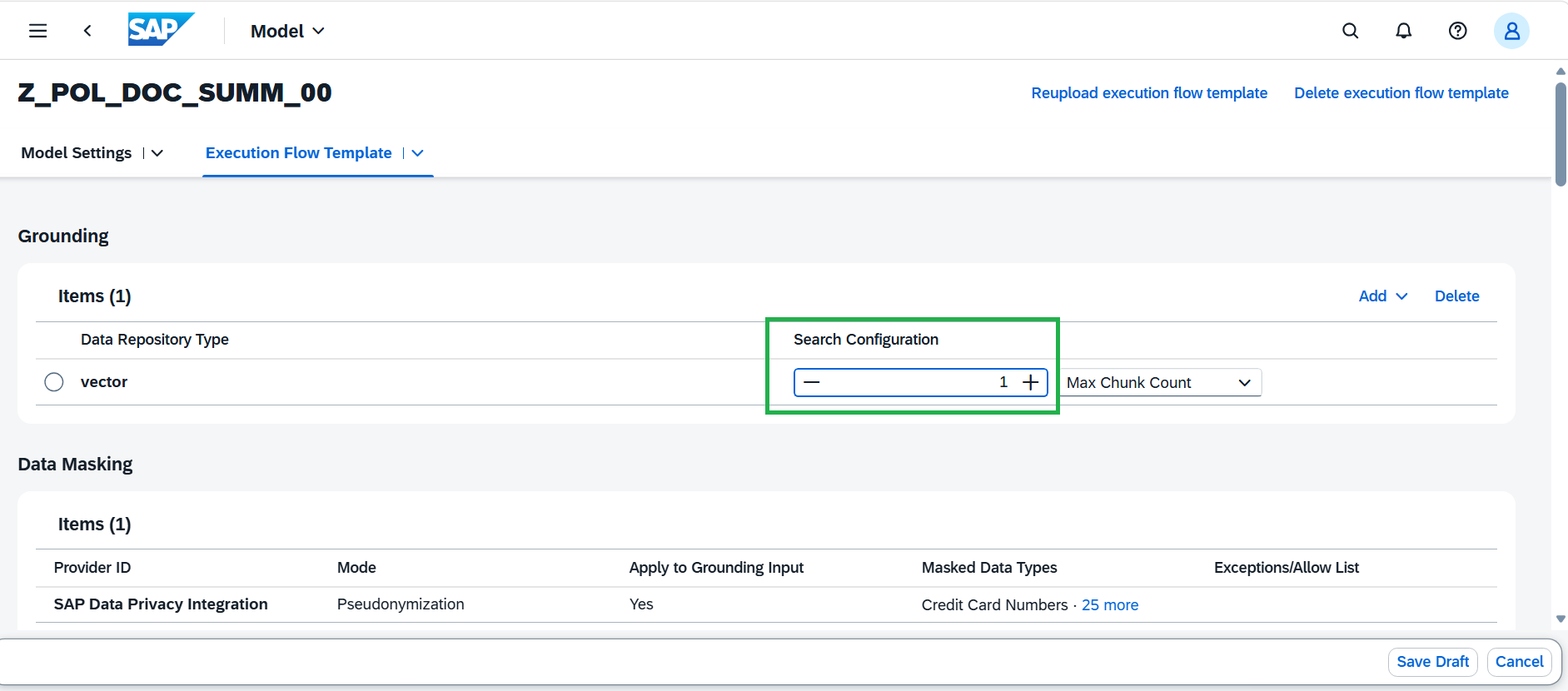
To restrict your grounding module output during inference, maintain Search Configuration value. This can help to retrieve only relevant data instead of all the uploaded data.
-
The Input Translation module allows you to translate LLM text prompts and grounding module output into a target language. It may help improve LLM response when the configured model performs better with input in specific language, example English. In this use case, prompt texts are already English, so no need to maintain the Input translation configuration.
-
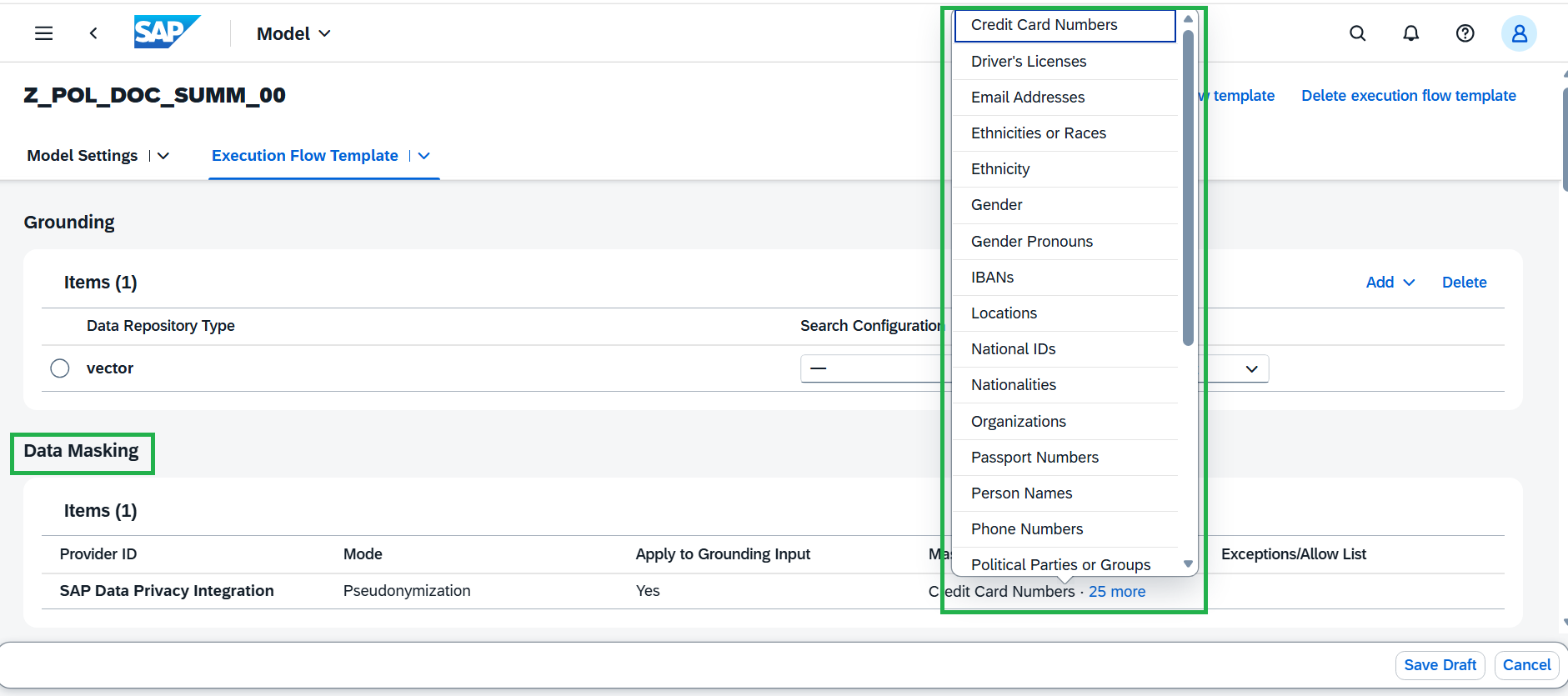
The Data Masking module enables the anonymization or pseudonymization of data before it is sent to the LLM model for processing.
-
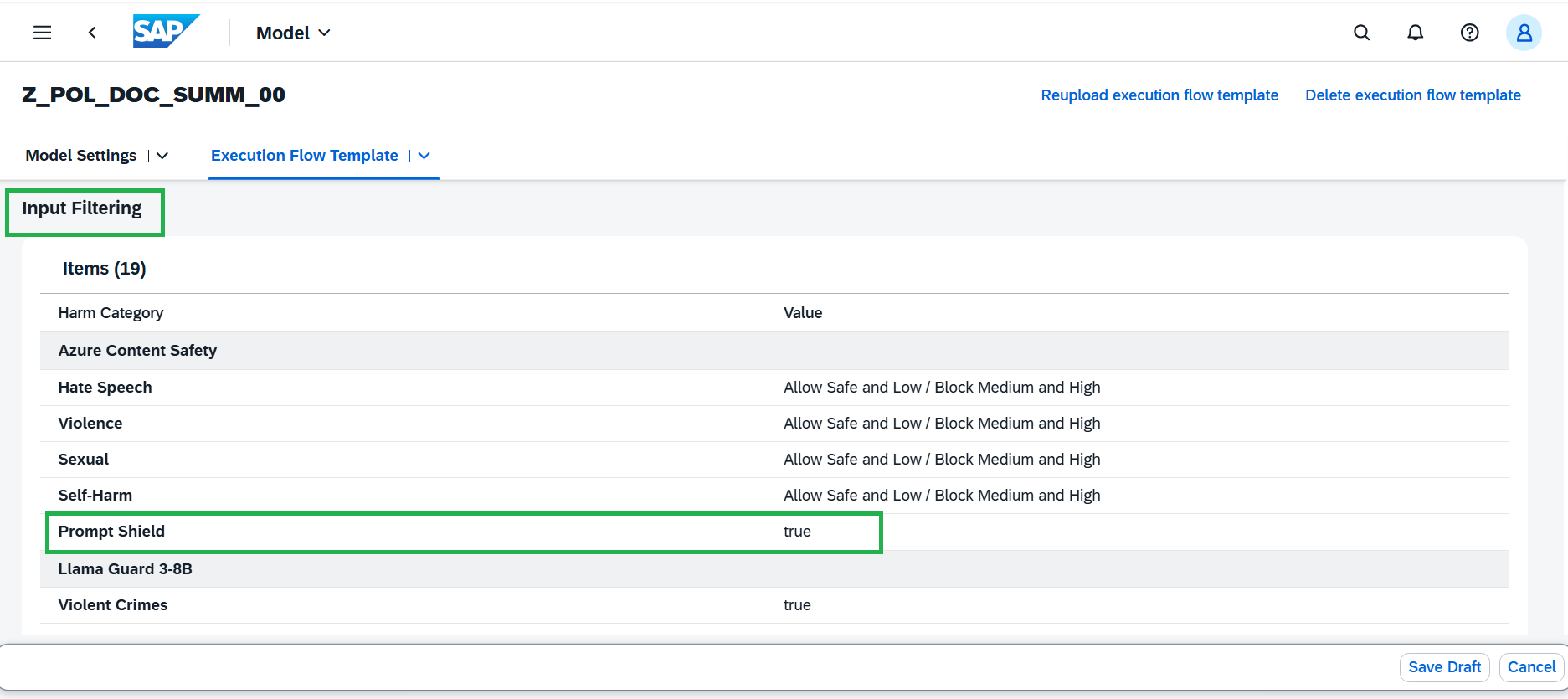
The Input filters defined in the Execution Flow Template JSON are populated and displayed in the table. Also, Prompt Shield is a security mechanism used to protect GenAI applications from potentially harmful or malicious prompts. It checks user input before it is sent to the LLM and helps identify attempts to manipulate the model or bypass its instructions. Prompt Shield is already true as per the JSON configuration file.
-
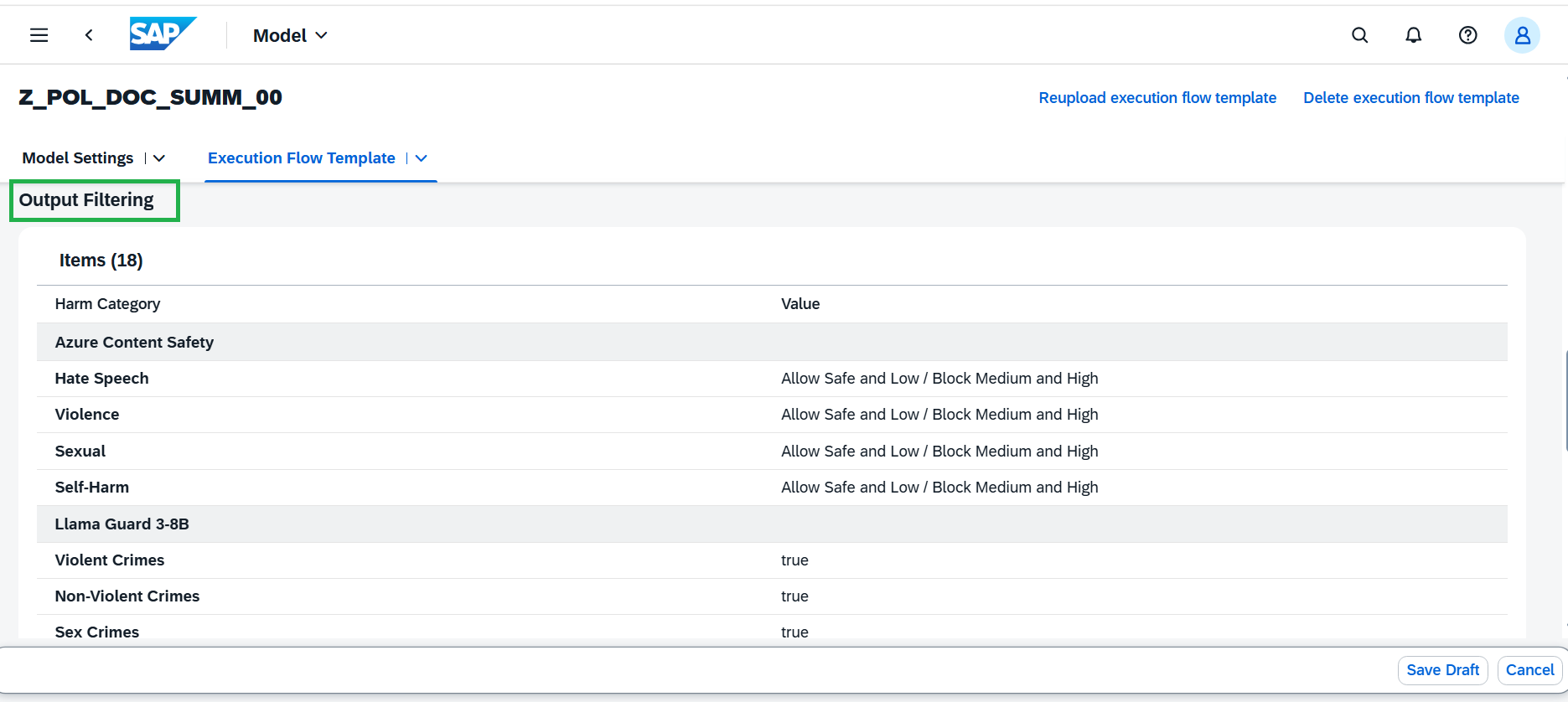
The Output Filtering module allows you to filter the harmful or hateful content generated by the LLM.
-
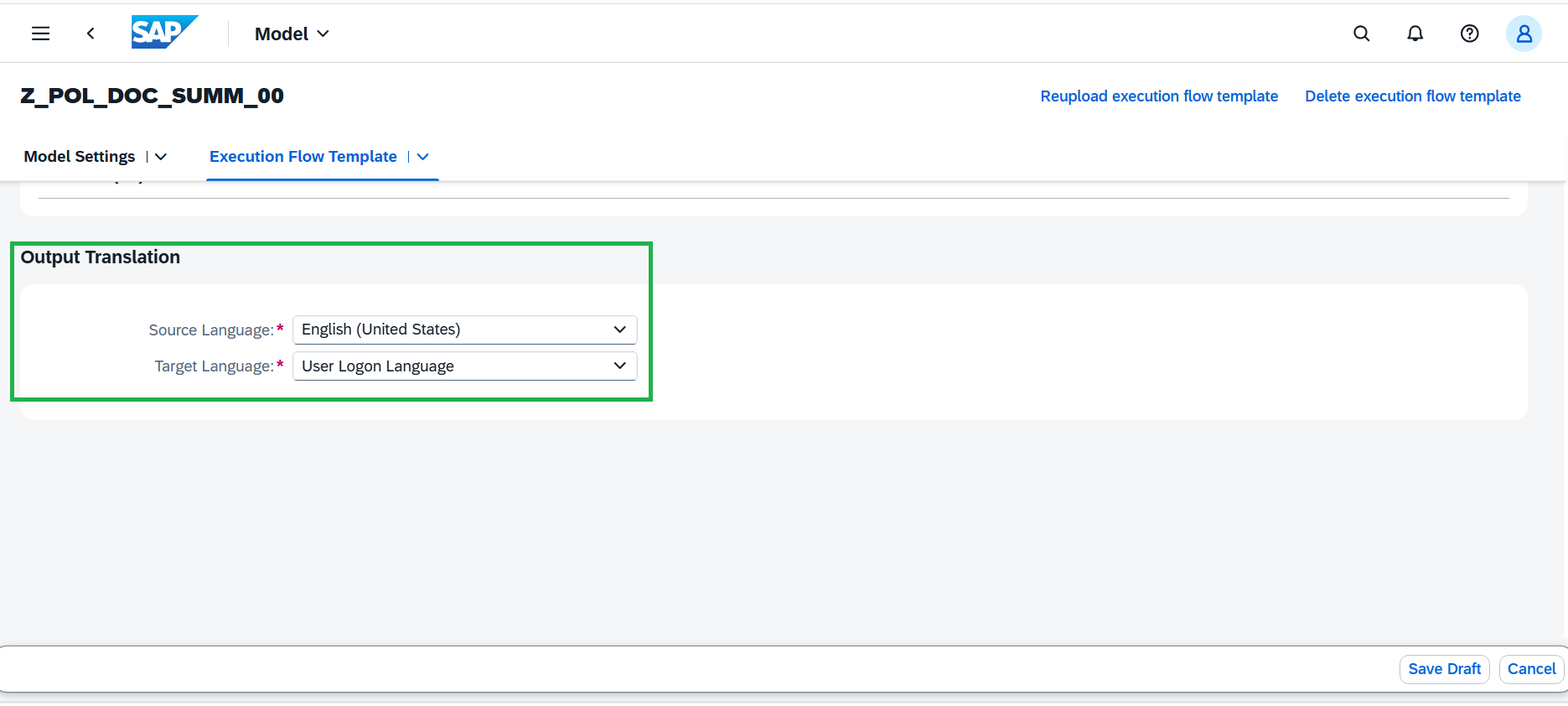
The Output Translation module allows you to translate LLM response into a target language. It helps to display the LLM response in the language user logged, if the translation is supported.
-
Add Grounding Template
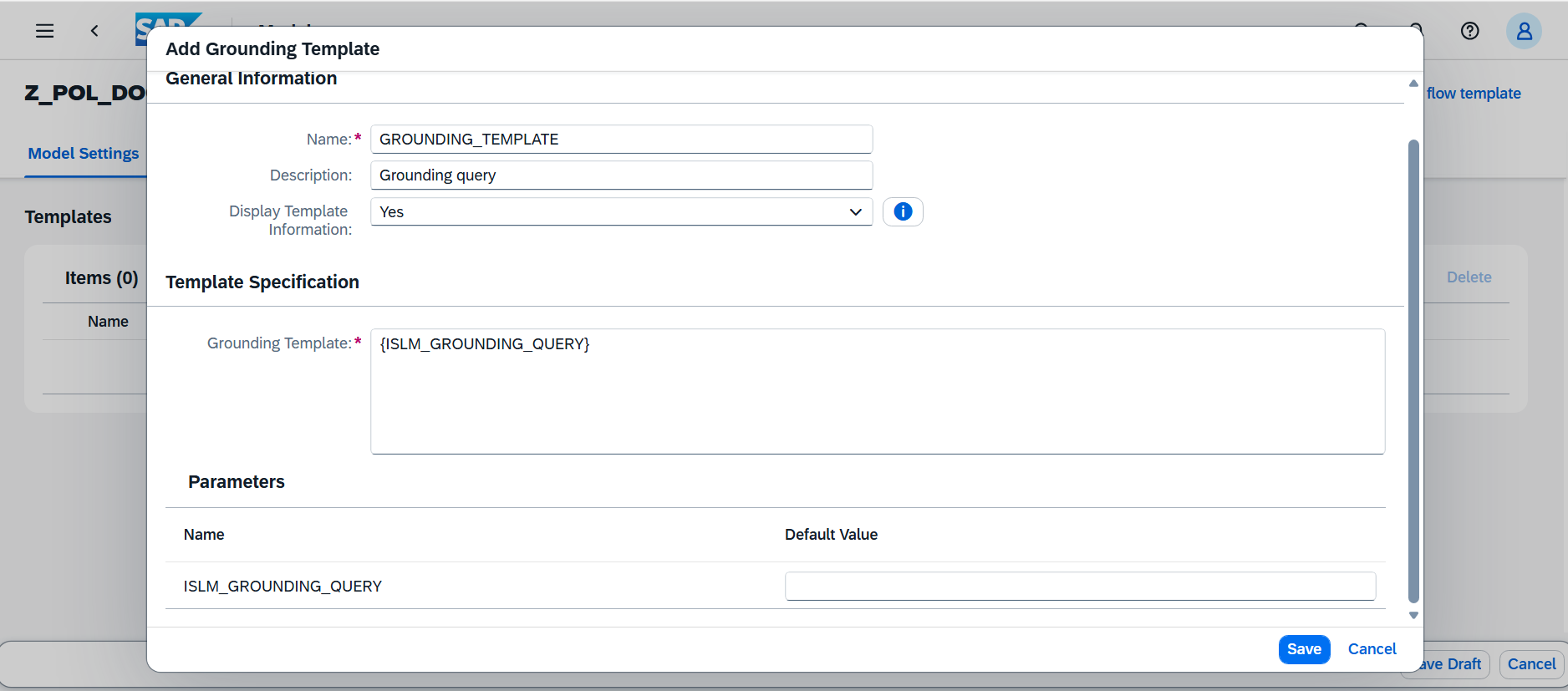
The Grounding Template retrieves relevant information from the selected data repository and appends it to the user prompt. It supports dynamic parameters, which are provided at runtime (during inference).
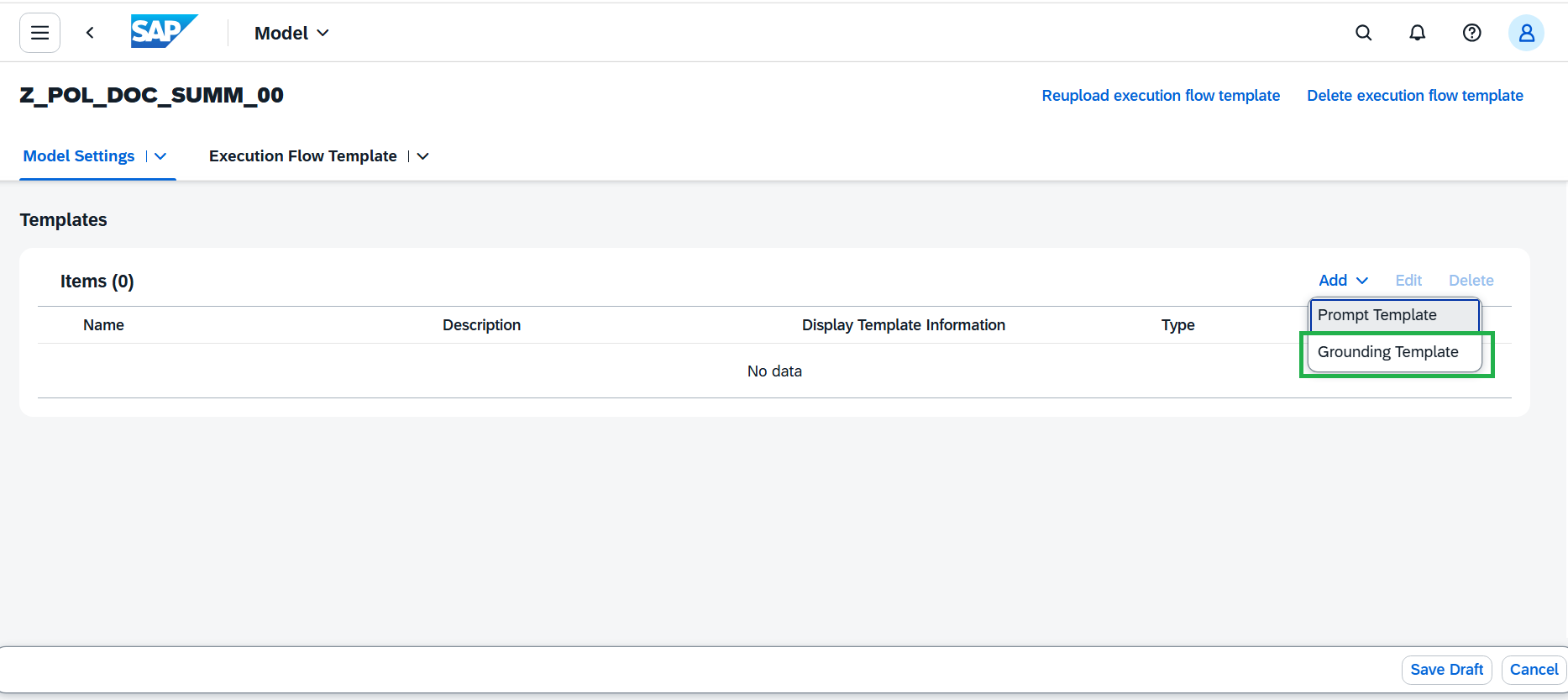
- Enter Grounding Template name:GROUNDING_TEMPLATE
- Enter Description:Grounding query
- Select the Display template information asYes.
- Enter Grounding template text:{ISLM_GROUNDING_QUERY}
The grounding template can include dynamic parameters similar to the user prompt.
-
Add Prompt template for System prompt
The system prompt is used to set the overall context, behavior, or persona for the AI's responses. It provides the fundamental instruction set to guide the model's behaviour throughout an interaction.
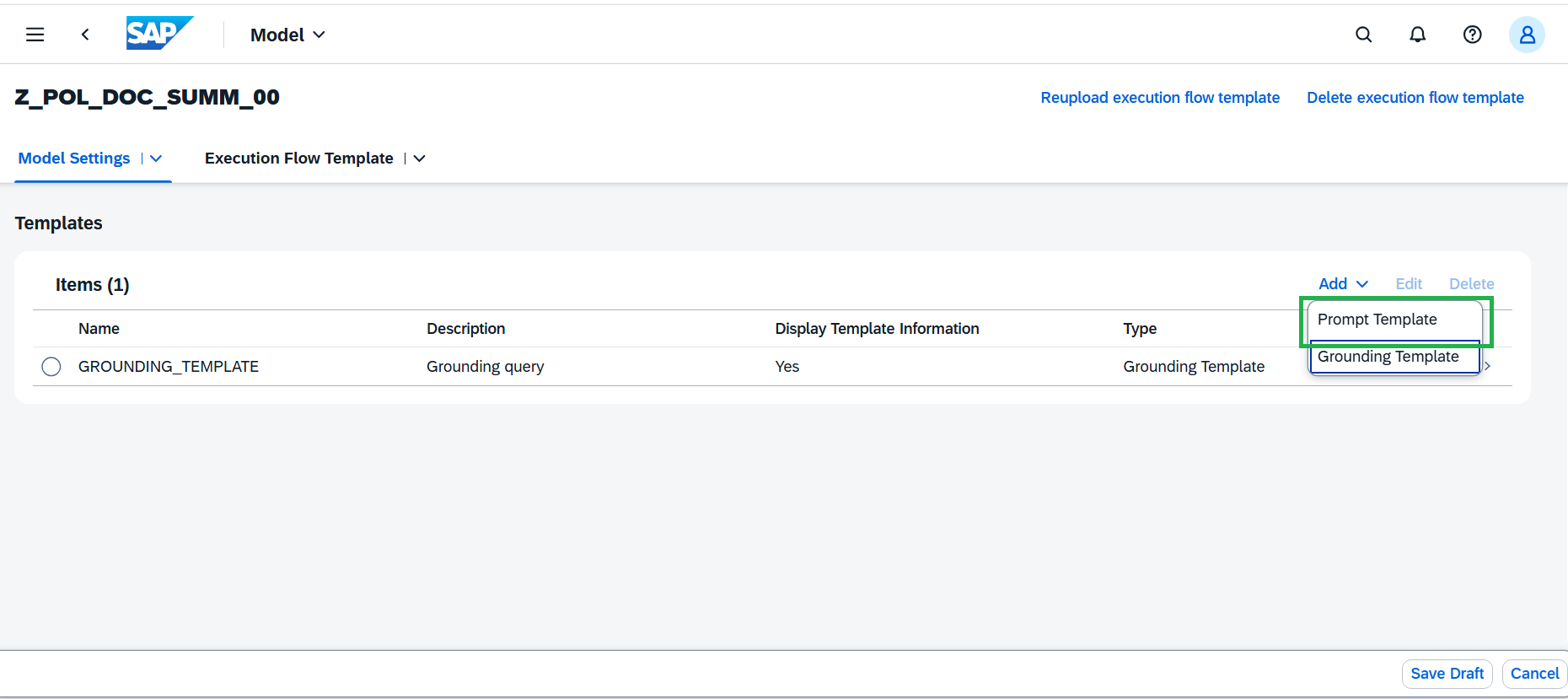
- Enter the Prompt name:SYSTEM_PROMPT.
- Enter the Description:Explain the role and responsibility for the LLM
- Select the Display template information asYes.
- Enter Prompt text:You are {ISLM_ROLE}. Your responsibility is to {ISLM_RESPONSIBILITY}.
- Default parameter value of ISLM_ROLE:An helpful assistant.
- Default parameter value of ISLM_RESPONSIBILITY:Assist the user with their queries.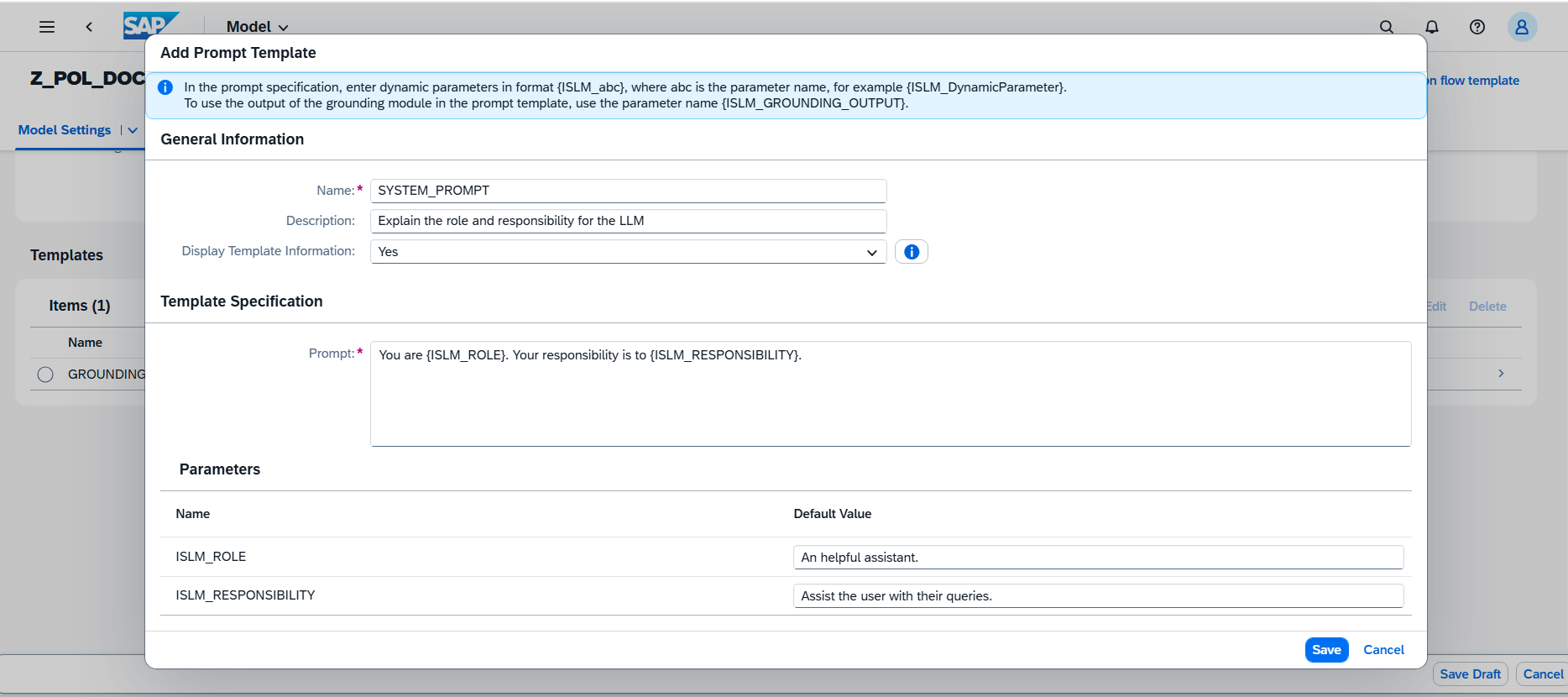
-
Add Prompt template for User prompt
If you have configured grounding module, at least one User Prompt must be added with the following parameter: {ISLM_GROUNDING_OUTPUT}
At runtime, this placeholder is automatically replaced with the content retrieved by the Grounding Template from the configured data repository.
- Enter the Prompt name:SUMMARIZE_RETURN_POLICY
- Enter the DescriptionUse LLM to summarize the return policy document to populate standard JSON
- Select the Display template information asYes.
- Enter the below text as Prompt textGenerate a summary of return policy document provided below for the company {ISLM_COMPANY_NAME}. ### INSTRUCTIONS - Populate the conditions of the return policy in the following JSON format { "return_policy": { "overview": { "summary": "string", "free_returns": "boolean", "customer_friendly_notes": "string" }, "return_window": { "days": "integer", "from_date": "string", // e.g., "from delivery date" or "from purchase date" "extensions": ["string"] // e.g., ["holidays", "defective items"] }, "eligibility_criteria": { "conditions": ["string"], // e.g., ["unused", "original packaging", "with tags"] "proof_of_purchase": { "required": "boolean", "alternatives": ["string"] // e.g., ["order history", "email confirmation"] }, "item_condition": "string" // e.g., "unworn, unwashed" }, "non_returnable_items": { "categories": ["string"], // e.g., ["software", "undergarments", "perishables", "custom products", "final sale"] "reasons": ["string"] }, "return_process": { "initiation_methods": ["string"], // e.g., ["online portal", "email support", "phone", "in-store"] "steps": ["string"], "return_authorization": { "required": "boolean", "form_url": "string", "label_provided": "boolean" }, "shipping": { "who_pays": "string", // e.g., "customer", "merchant", "prepaid label" "instructions": "string", "address": "string", "preferred_carriers": ["string"] }, "required_documents": ["string"] // e.g., ["receipt", "order number", "packing slip"] }, "refund_options": { "types": ["string"], // e.g., ["full refund", "partial refund", "store credit", "exchange"] "default_method": "string", "payment_method": "string", // e.g., "original payment", "gift card" "processing_time": "string", // e.g., "3-5 business days" "fees": { "restocking_fee": { "amount": "number", "percentage": "number", "applies_to": ["string"] }, "other_fees": ["string"] } }, "shipping_costs": { "original_shipping": "boolean", // refundable? "return_shipping": "boolean" // refundable? }, "special_cases": { "defective_damaged": { "extended_window": "boolean", "free_shipping": "boolean", "full_refund": "boolean" }, "wrong_item": { "process": "string" }, "holidays": "boolean", "other": ["string"] }, "contact_info": { "support_email": "string", "phone": "string", "live_chat": "boolean", "return_center_url": "string" }, "legal_notes": { "state_laws": ["string"], "warranties": "string" }, "last_updated": "string" // for policy version tracking } } - Respond with only the JSON output ### RETURN POLICY DOCUMENT {ISLM_GROUNDING_OUTPUT}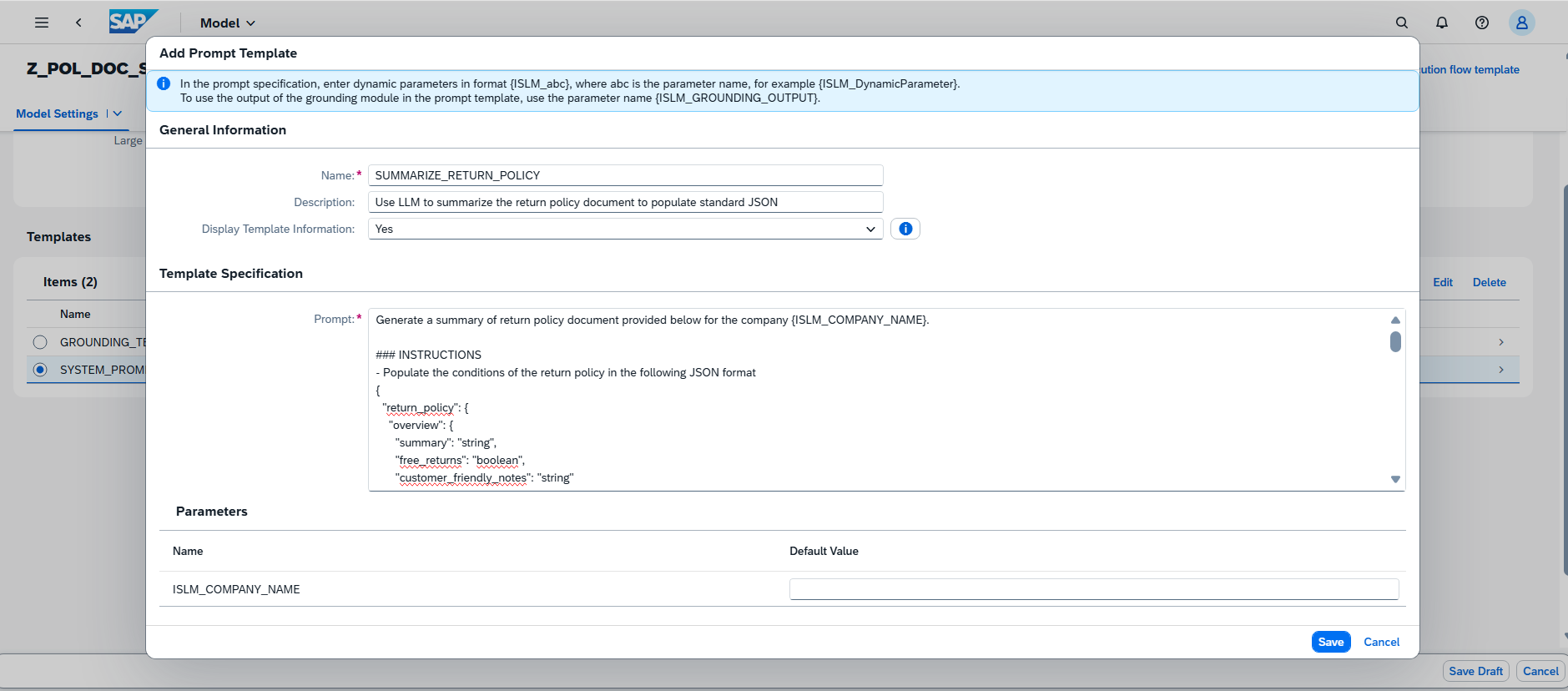
-
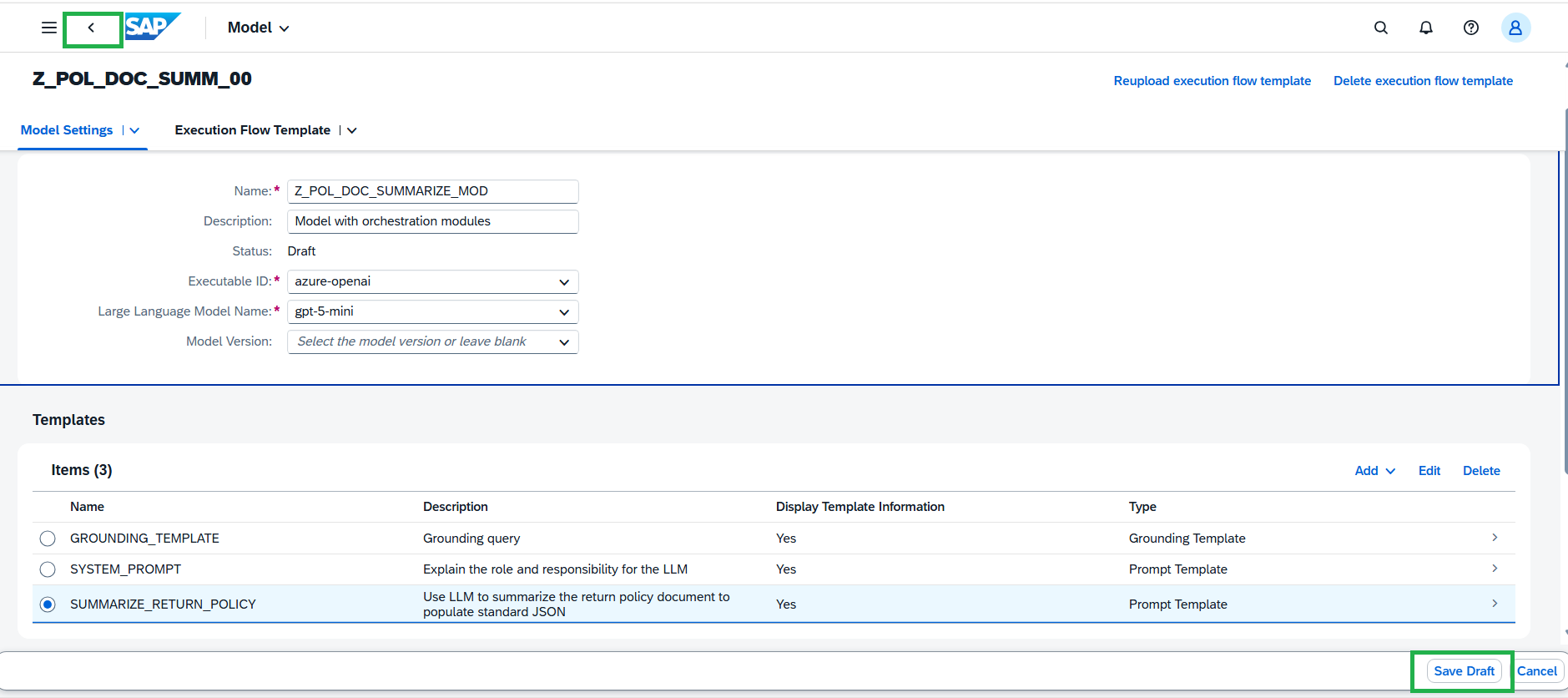
Save Draft and navigate to Scenario documents section by pressing Back.
-
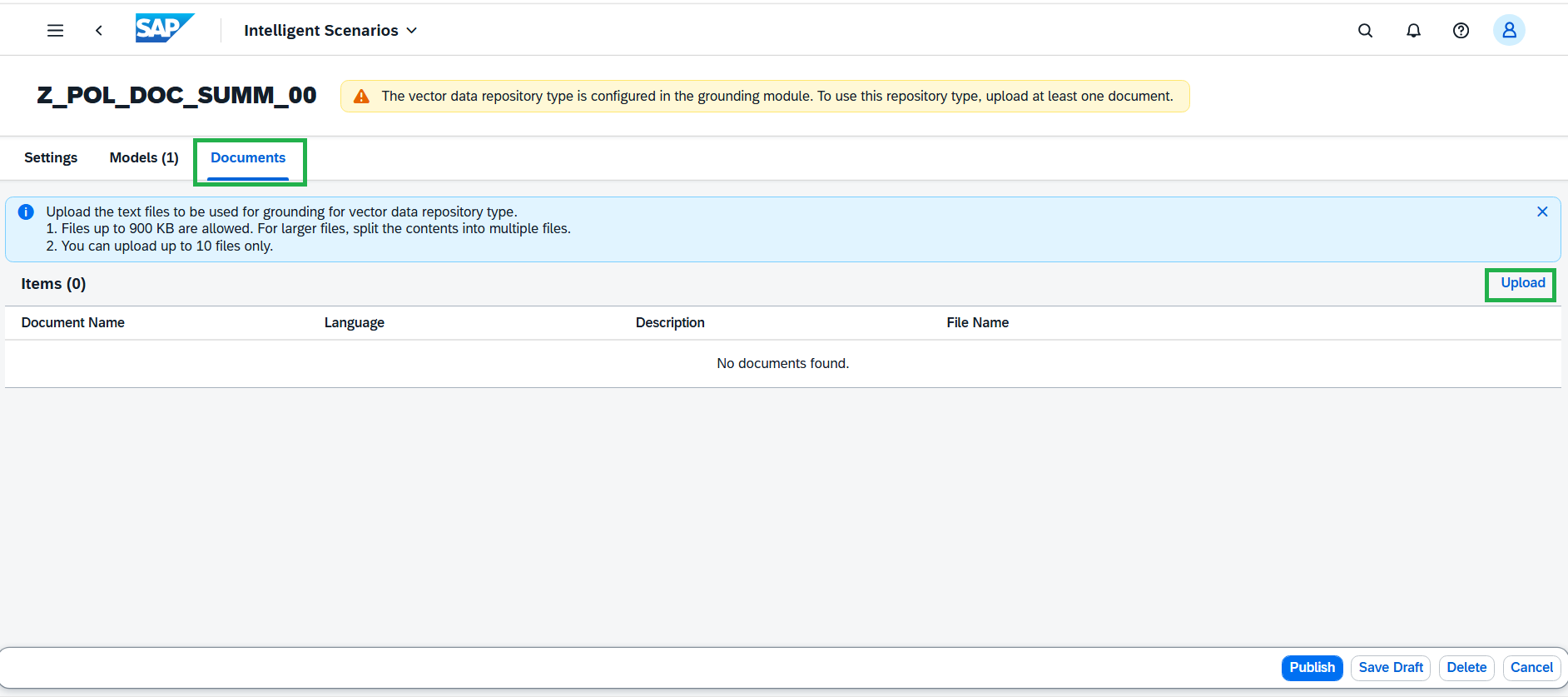
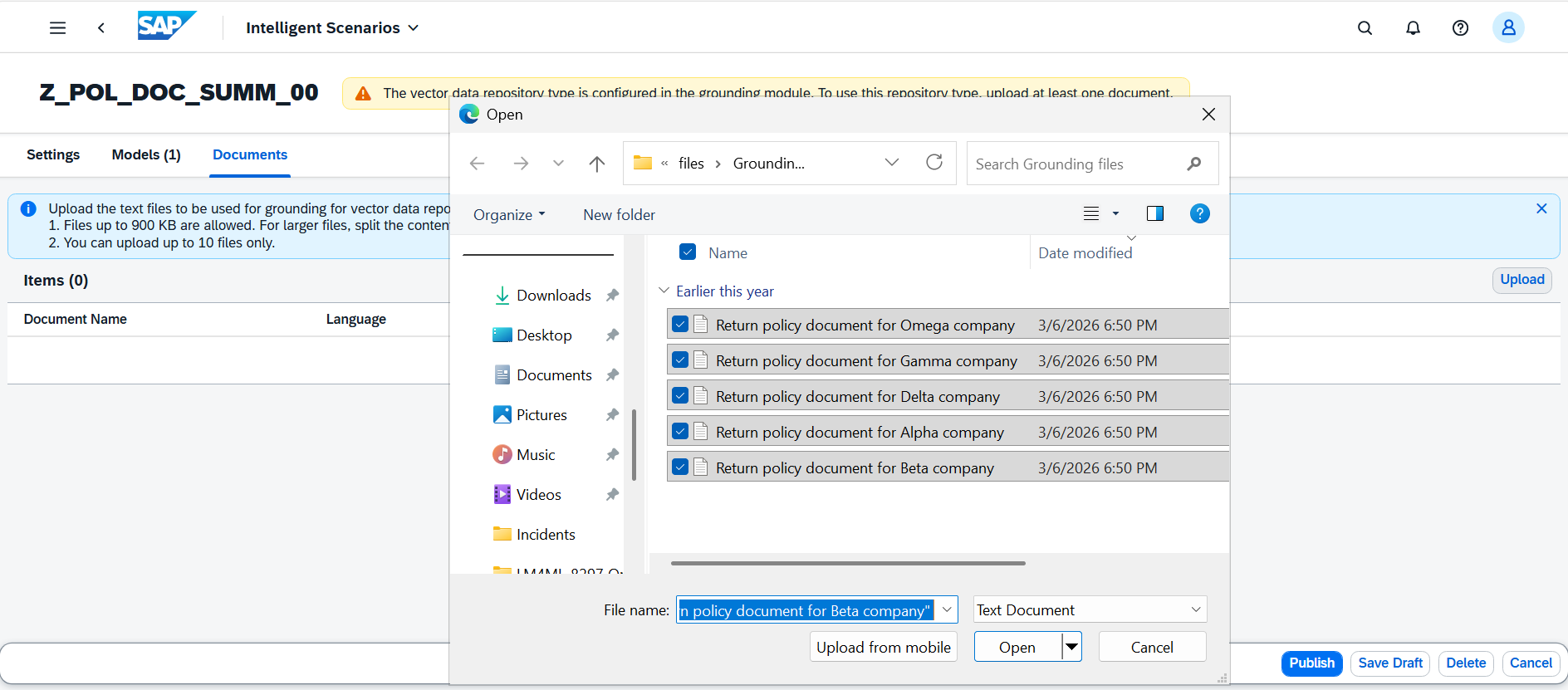
Upload grounding documents to an Intelligent Scenario by clicking on Upload button. Click here to download and extract the grounding files to your desktop before proceeding.
-
Select the below files from the Grounding files folder from your desktop.
-
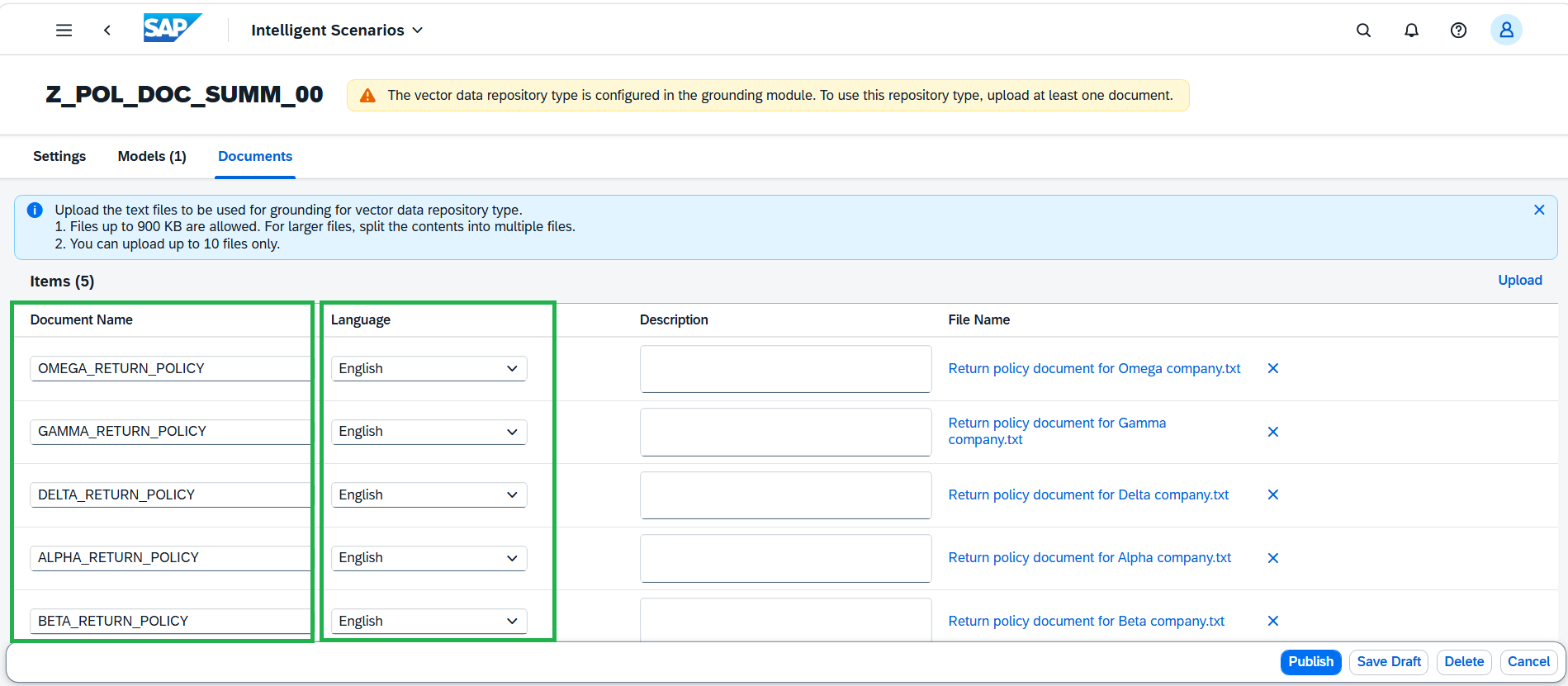
Enter the document names like below and choose English as language for all the files.
-
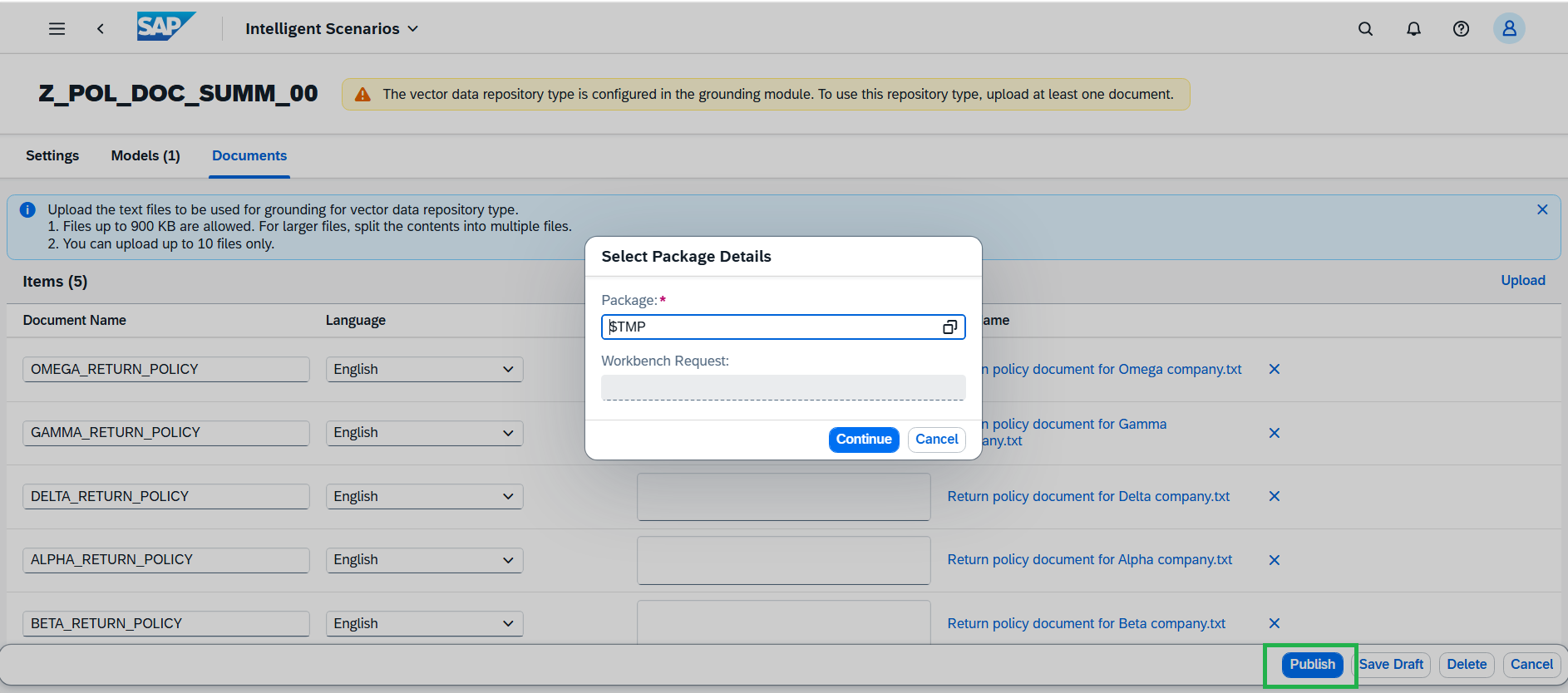
Click Publish button and enter the package as local object $TMP.
-
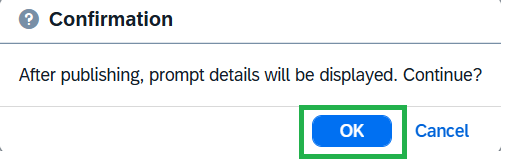
Press OK.
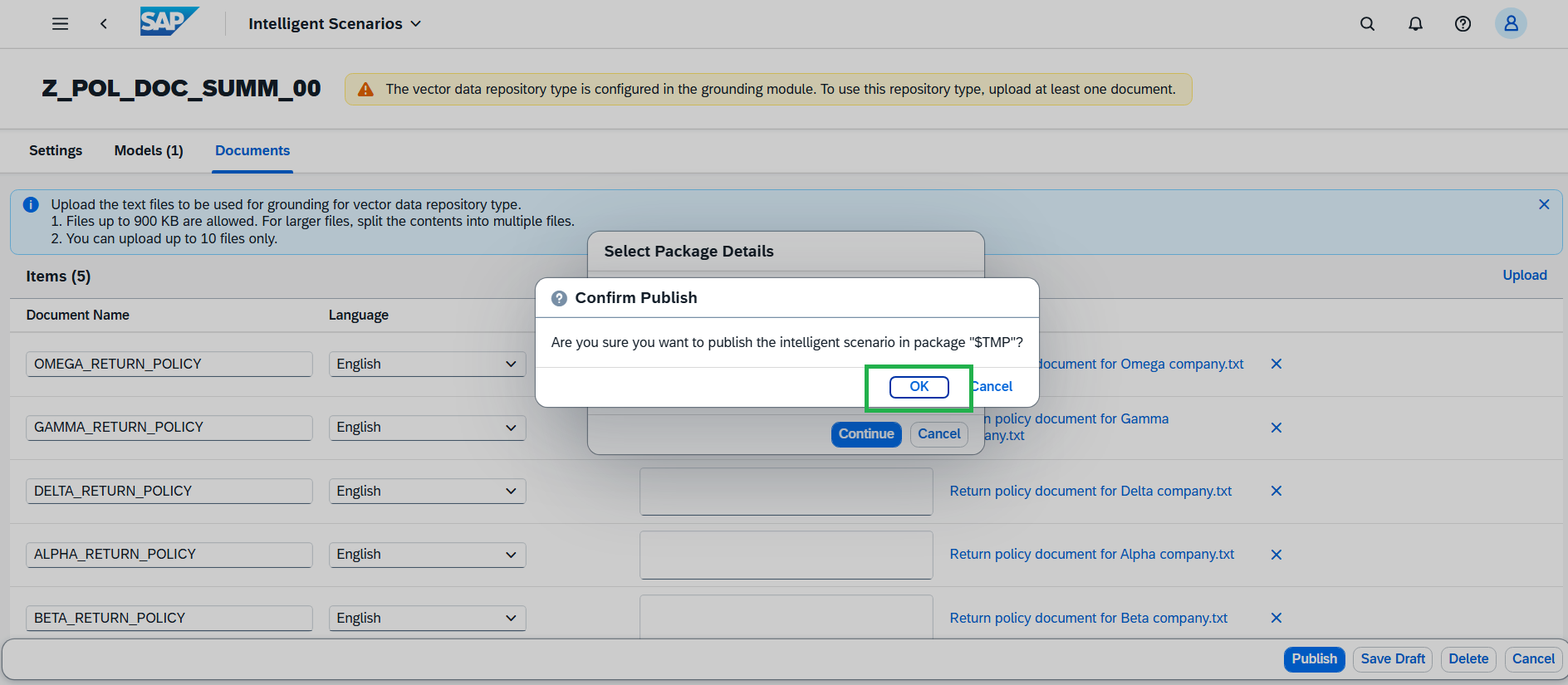
Intelligent Scenario is created successfully.